
Ever stumbled across a competitor's Shopify store and thought, "Wow, I love this design"? It happens all the time. You're not just admiring the pretty colors; you're recognizing a well-oiled machine built for selling. Figuring out what theme they're using is more than just a clever trick—it's a powerful way to reverse-engineer their success.
Why Finding The Right Shopify Theme Is A Competitive Edge
When you identify a theme that's clearly working for a top store in your niche, you're tapping into valuable intel. It saves you from endless hours of guesswork and development, letting you build your own store on a foundation that's already proven to be modern, fast, and effective. For anyone just starting out, especially dropshippers, this is a game-changer. It means you can launch faster and with more confidence, focusing your energy on what really matters: your products and marketing.
Think of it as market research. Seeing which themes successful stores are running gives you a peek into their strategy. Did they opt for a lean, free theme, or did they invest in a premium one packed with features? That single piece of information can help you make smarter decisions for your own business right from the start.
The Power of a Popular Theme
Of course, your theme is just one part of the puzzle. The entire platform you choose to build on matters immensely. Before you even get to theme selection, it's worth reviewing guides on the best ecommerce platforms for small business to make sure Shopify is the right fit for your goals.
Once you're committed to the platform, understanding theme trends gives you a massive advantage. For instance, recent data from over 835,000 stores revealed that Shopify's own free Dawn theme is used by a staggering 25.2% of all stores on the platform. There's a good reason for its popularity. As an OS 2.0 theme, it's built for speed and a mobile-first experience—absolutely crucial when you consider that 79% of all Shopify traffic comes from mobile devices. Digging into Shopify theme statistics like these really highlights why the right design is so critical.
Before we dive into the "how-to," let's quickly break down the strategic reasons you'd want to do this in the first place.
Strategic Reasons To Identify A Store's Theme
This table provides a quick overview of the business advantages gained by knowing what theme a competitor or inspiring brand is using.
| Benefit | Why It Matters For Your Store |
|---|---|
| Market Research | Gain insight into a competitor's investment and design strategy (free vs. paid theme). |
| Feature Inspiration | Discover built-in functionalities you might not have known you needed. |
| Save Time & Money | Avoid costly custom development by finding a theme that already does what you want. |
| Validate Your Ideas | See if a layout or style you like is actually being used successfully in the real world. |
| Focus on a Proven Winner | Start with a theme that is already popular, well-supported, and optimized for sales. |
This isn't just about copying someone else; it's about learning from what works and making informed decisions to build a store that not only looks professional but is engineered to sell.
A great theme isn't just about looking good. It’s a framework for conversions, built on best practices for user experience, mobile responsiveness, and site speed.
Ultimately, detecting a theme is the first step toward building a store that you can be confident in. Let's get into the methods you can use to find out what theme any Shopify store is running.
Sometimes you just need a fast, straightforward answer without digging through lines of code. Let's be honest, not everyone wants to play detective in a website's source code.
This is where online theme detectors come in. They're built for speed and simplicity. You just grab the store's URL, paste it into a search box, and you get your answer in seconds. It’s the perfect method for marketers, entrepreneurs, or anyone who just wants to get the information and move on.
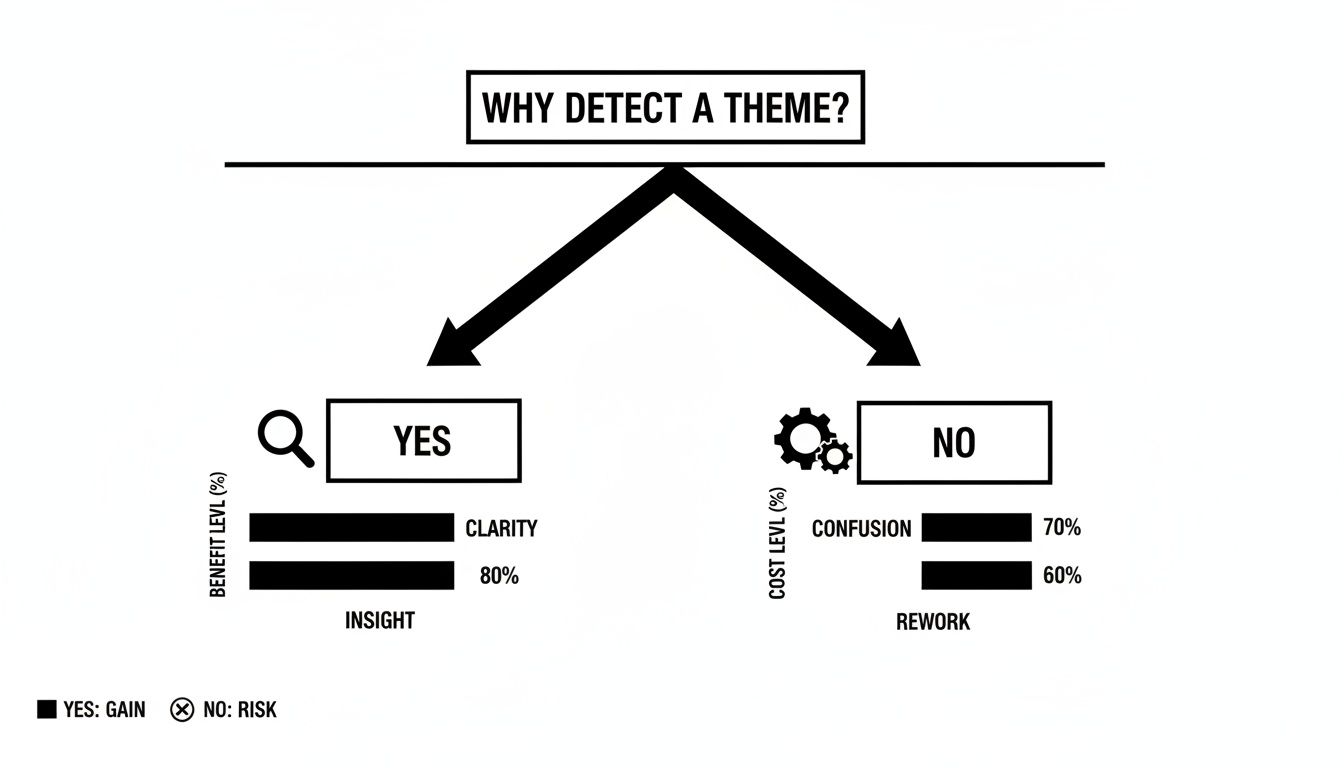
As you can see, taking a moment to identify the theme sets you up for clarity and solid insights. Skipping it? That often leads to guesswork, confusion, and wasted effort down the line.
How to Use an Online Detector
Using one of these tools is incredibly simple and requires zero technical background. The whole process is designed to be quick and painless.
- Grab the Store's URL: Head over to the Shopify store you're curious about and copy the full web address from the top of your browser.
- Paste and Search: Open up your go-to online detector, paste the URL into the search field, and hit the "Detect" or "Analyze" button.
- Check the Results: In just a moment, the tool will spit out the details. You'll typically see the theme’s name, who made it, and often a direct link to where you can find it on the Shopify Theme Store.
Expert Tip: Online detectors are fantastic for quick competitive analysis. They level the playing field, giving any merchant the power to gather design inspiration and market intelligence without needing to be a developer.
Making Sense of the Results
The information you get from a detector is more than just a name—it's a peek into a competitor's strategy. For instance, spotting a store using a theme like Debut (historically one of the most popular themes) tells you a lot. Even though it's an older theme, it’s a workhorse known for solid conversion rates, especially in the dropshipping world. If you want to see what's currently trending, check out this great resource on Shopify's most popular themes from Sell The Trend.
Here’s the real magic: a good detector doesn't just stop at the theme name. It can often tell you if the store is using a standard, out-of-the-box version or if they've heavily customized it. This context is gold because it helps you set realistic expectations for your own project and budget.
And while you're at it, why stop at the theme? You can get a more complete picture of a store's setup by using a dedicated Shopify app detector to see what tools they're using to power their business.
Ultimately, this method cuts right to the chase, making it an essential first stop for any serious store owner.
How To Find A Theme In The Source Code
So, what happens when an online Shopify theme detector throws its hands up and gives you a vague "custom theme" result? You haven't hit a dead end. It just means it's time to roll up your sleeves and peek under the hood at the store's blueprint: its source code.
This might sound like something reserved for developers, but I promise it’s surprisingly simple. You're not trying to understand the entire codebase; you're just looking for a specific name in a big document. It's like using "Find" in a Word doc.
Accessing The Page Source
Every modern web browser gives you a direct window into a website's public-facing code. This isn't hacking or anything shady—it’s just viewing the exact information your browser is already using to build the page you see.
First, head over to the Shopify store you're curious about and let the page fully load. Then, use one of these simple keyboard shortcuts:
- On Windows: Press
Ctrl + U - On Mac: Press
Cmd + Option + U
You can also just right-click anywhere on the page and choose "View Page Source" from the menu that pops up. A new browser tab will open, showing you a wall of code. Don't be intimidated! You only need to find one or two specific phrases.
Searching For Digital Breadcrumbs
With the source code open, it's time to use your browser's search tool. Hit Ctrl + F (on Windows) or Cmd + F (on Mac) to bring up a small search bar, usually in the top-right corner. This is your secret weapon.
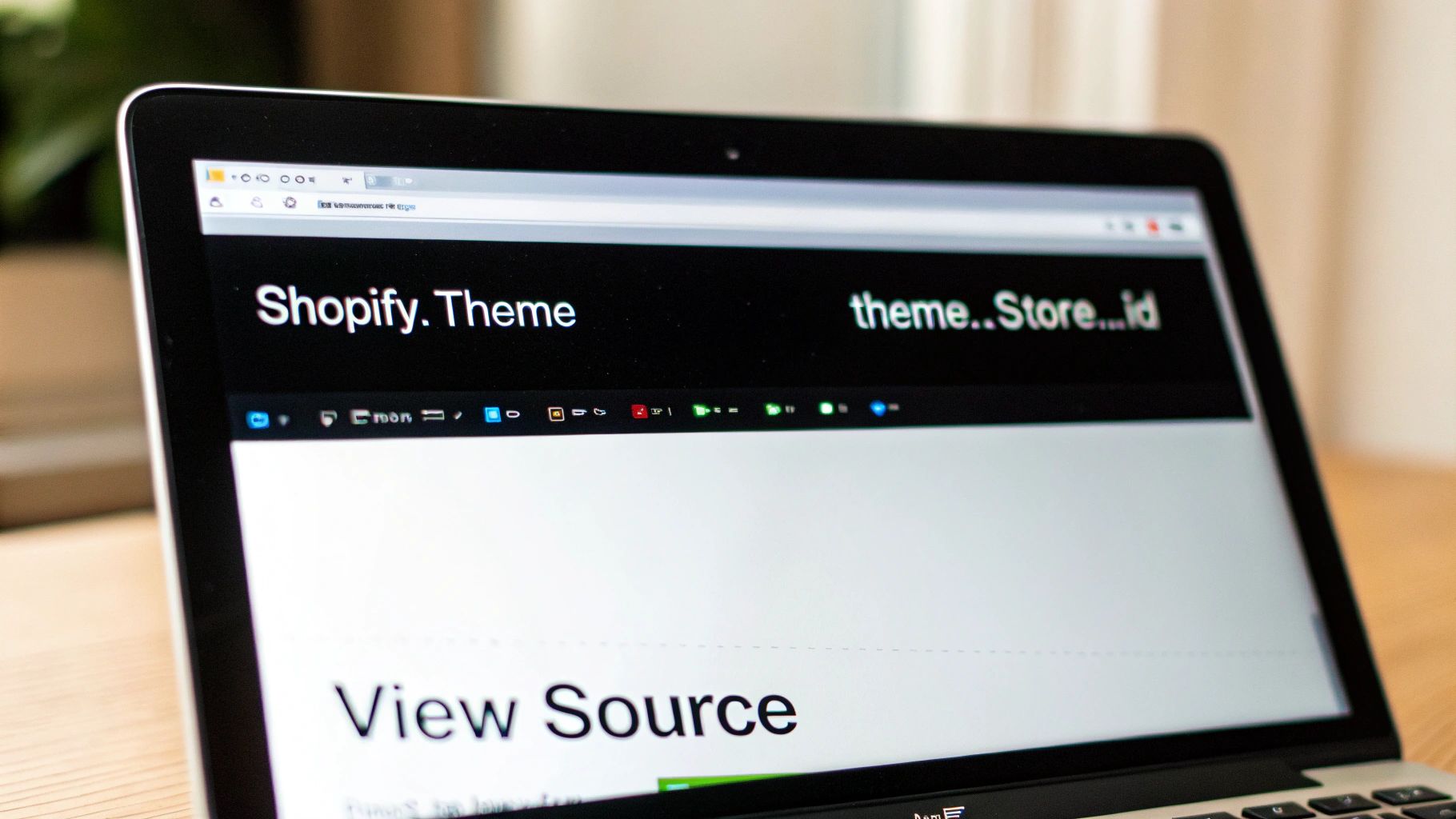
There are two key "breadcrumbs" to look for. The absolute best and most reliable one is Shopify.theme.
Type Shopify.theme into that little search box and hit Enter. Your browser should immediately jump to and highlight a line of code that looks something like this:
Shopify.theme = {"name":"Impulse","id":123456789,"theme_store_id":857,"style":{"id":987654321,"name":"Bold"}}
Bingo. Right there, next to "name", you have your answer: "Impulse." It's often that easy. This single line can tell you everything you need to know.
Another great search term is theme_store_id. This will usually land you on the very same line of code. The number you see next to theme_store_id (in this case, 857) is a unique identifier. A quick Google search for "Shopify theme store id 857" will almost always lead you directly to that theme's page in the Shopify Theme Store.
For a quick reference, here are the key terms I always check for when digging into the source code.
Manual Detection Cheat Sheet For Source Code
| Search Term (Ctrl+F) | What It Helps You Find |
|---|---|
Shopify.theme |
The most direct way. This reveals a data object with the theme's name and ID. |
theme_store_id |
Finds the unique ID for themes from the official Shopify Theme Store. |
"name": |
Often found near Shopify.theme to pinpoint the theme's public name. |
This little table covers the most effective clues you can find. It's the same process I use, and it works nearly every time.
Key Takeaway: The
Shopify.themeobject is the golden ticket. It's the most reliable piece of evidence in a store's source code, cutting right through the noise to give you the theme's name and official ID.
If you search and the theme name shows as "null" or the entire Shopify.theme object is missing, that’s a very strong sign the store is running a completely custom-built theme that isn't for sale. Sometimes, savvy store owners will intentionally obscure this information, much in the same way they might remove the "Powered by Shopify" branding from their site's footer for a cleaner, more unique feel.
Mastering this manual check is an invaluable skill. It gives you a foolproof backup when the automated tools fail and provides a much deeper insight into how a successful store is built.
Digging Deeper with Browser Developer Tools
Sometimes, the easy methods just don't cut it. When a site is heavily customized or you're hitting a wall with online tools, it's time to pop the hood and look at the engine yourself. This is where your browser’s built-in Developer Tools come in, and it's my go-to method for a definitive answer.
Don't be intimidated if you're not a coder. While the interface looks like something out of The Matrix, we only need to poke around in a couple of specific spots to find what we're looking for. Think of it as digital forensics for e-commerce.
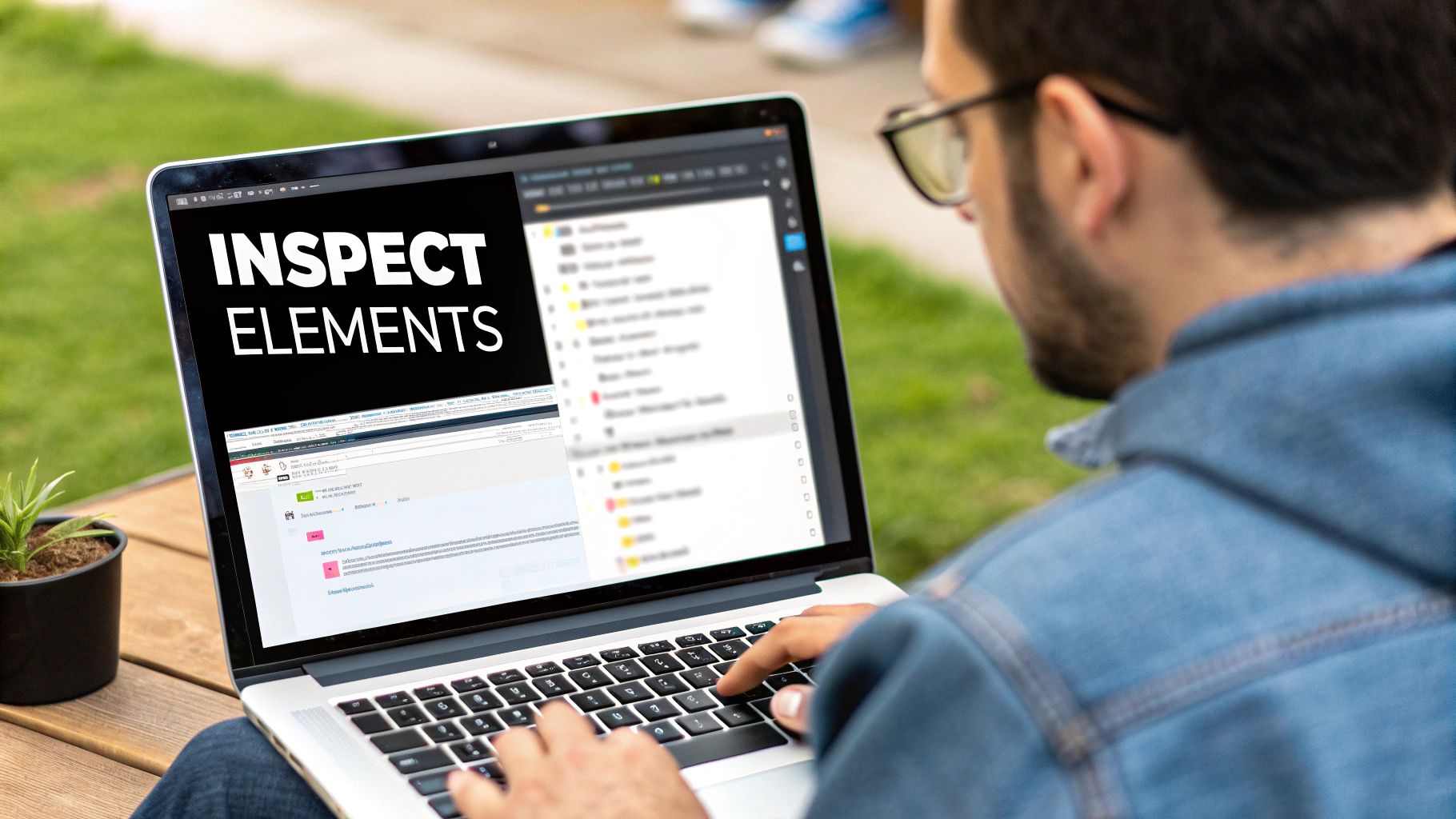
Ready to get started? Just go to the Shopify store you're curious about, right-click anywhere on the page, and choose "Inspect." Alternatively, the keyboard shortcut F12 (on Windows) or Cmd + Option + I (on Mac) will get you there. This will open up a panel packed with the website's code—our new playground.
Searching the Elements Tab for Clues
Your first stop should be the Elements tab. This gives you a live view of the page's HTML, and it's a goldmine for finding the theme's name hidden in plain sight within the CSS class names.
With the Elements panel open, just hit Ctrl + F (or Cmd + F on a Mac) to bring up a search bar. Now, search for terms like "theme" or "template." Often, you’ll see the theme's name assigned as a class to the <body> tag. For instance, you might find something like <body class="template-product theme-impulse">. Boom. The theme is Impulse. It’s that simple. Developers often leave these footprints behind because they're part of the theme's core styling structure.
Pro Tip: This is hands-down the best way to identify the base theme on a heavily customized site. A developer might change countless files, but they rarely bother to alter these fundamental body classes, giving you a direct clue to the store's original foundation.
Exploring the Sources Tab for Hard Evidence
If the Elements tab was a dead end, don't worry. Your next move is to click over to the Sources tab. This area shows you a directory of every single file your browser downloaded to build the page you're seeing. It’s like looking directly into the website’s filing cabinet.
In the file tree on the left, navigate through the folders until you find one related to cdn.shopify.com. Inside, you'll almost always see an assets folder. This is where the magic happens. Click into it and start scrolling through the file names. You're looking for the smoking gun.
Keep an eye out for these tell-tale signs in the file names:
- Generic but revealing files like
theme.jsortheme.css. - Files clearly named after the theme, such as
prestige.js. - CSS files that include the theme's name, like
motion-custom.css.
For example, spotting a file named assets/dawn.css.liquid is undeniable proof the store is using Shopify's popular Dawn theme. It's a direct link to the theme's core stylesheet. This level of inspection often works when nothing else does because it's incredibly difficult for a developer to scrub the theme's name from every single asset without breaking the entire site.
What To Do When a Theme Is Custom or Renamed
So you’ve run all the detectors, picked through the source code, and poked around in DevTools, but you’re still coming up empty. Don't worry, you haven't failed. This is a super common roadblock, especially when you're looking at established brands that have poured serious money into their online storefront.
Chances are, they're using a completely custom-built theme from the ground up or they've heavily modified and renamed a premium theme to protect their design strategy. But hitting this "dead end" is actually a good thing. It forces a shift in your thinking.
Instead of hunting for a name you can't find, it's time to reverse-engineer the experience. What was it about the store that grabbed your attention? Was it the slick product page layout? The buttery-smooth navigation? Or maybe a unique filtering system that just worked perfectly?
When the theme name is a mystery, the next best move is to break down its core components. This turns a frustrating dead end into a seriously productive research session, giving you a clear blueprint for your own store.
Become a Design Detective
First, put on your detective hat and look for clues left behind by the creators. I always start by scrolling right to the bottom of the page. Many web design agencies and freelance developers leave a small credit in the footer—something subtle like "Site by [Agency Name]" or "Designed by [Developer]."
A quick Google search for that name can lead you straight to their portfolio. If you're lucky, they'll have a case study on the project, sometimes even detailing the tech and strategy they used. It's a long shot, I'll admit, but when it pays off, the insights are pure gold.
The goal is no longer about finding the exact theme. It’s about deconstructing a fantastic user experience into its core building blocks. That way, you can find a theme that gives you a similar foundation to build upon.
After you've checked for credits, it's time to document what you love about the site's design language. I personally like to take a bunch of screenshots and make a simple checklist.
- Navigation Style: Is it a clean, minimalist header, a sprawling mega menu, or maybe a sidebar?
- Product Page Layout: How do they arrange the product photos, description, and the "add to cart" button? Is it a standard layout or something more editorial?
- Collection Page Filters: Are the filters basic, or are they advanced with options for size, color, price range, and more?
- Unique Sections: Did you notice any special features, like lookbooks, slick video galleries, or tightly integrated blog posts on product pages?
Finding Themes With Similar Functionality
Armed with your checklist of features, you can now search the Shopify Theme Store and other marketplaces with real purpose. Instead of plugging in a theme name, you'll be searching for functionality.
Try searching for terms like "themes with advanced collection filtering" or "themes with editorial-style product pages." You'll be surprised at how much more effective this is. It forces you to think critically about why a design works so well, rather than just trying to copy it blindly.
For anyone looking to take a solid theme and really make it their own, learning how to customize Shopify themes is the logical next step. By identifying the key components of a custom build, you can often find a powerful premium theme that gets you 90% of the way there, saving you a small fortune in development costs.
Got Questions? We've Got Answers
Even after you've learned the ropes, a few questions always pop up. It's totally normal. Here are some of the most common things people ask when trying to figure out what Shopify theme a store is using.
Is It Legal or Sketchy to Use a Shopify Theme Detector?
Rest easy. Using a theme detector for Shopify is perfectly legal and a standard part of competitive research. Think of it like a mechanic looking under the hood of a car—all the information you're seeing is publicly accessible in the website's source code. You're not peeking at anything private like customer data or passwords.
The key is to keep it ethical. The goal is inspiration, not duplication. It’s one thing to admire a store’s layout and functionality, but it’s another thing entirely to copy their branding, logos, or content. That’s where you cross the line into copyright infringement, so just use this knowledge to learn, not to lift.
Can These Tools Also Tell Me Which Shopify Apps Are Installed?
Not really. A theme detector is a specialist; its job is to look for the specific digital fingerprints left by a theme's files and code structure. Shopify apps, on the other hand, inject their own separate scripts into a site, which theme detectors are blind to.
If you want the full story on a competitor's setup, you'll need a dedicated Shopify app detector. It's best to think of them as two different tools for two different jobs.
What if I Find the Theme, but It's No Longer for Sale?
This happens more often than you might think. A store might be running an older theme that the developer has since pulled from the Shopify Theme Store. Don't let it be a dead end. Instead, it’s time to pivot.
- Break it down: Pinpoint exactly what you loved about it. Was it the slick navigation menu? The way the product pages were laid out? The homepage design? Make a list.
- Search for features, not names: Take that list of features and use those keywords to search the current Shopify Theme Store. You're looking for a theme that does what the old one did.
- Find its modern cousin: You can almost always find a new, fully-supported theme that has a similar vibe and functionality but with all the modern perks like better speed, mobile performance, and compatibility with the latest Shopify features.
Why Isn't the Detector Finding a Theme Name?
If a good theme detector for Shopify strikes out, it usually comes down to one of two things.
The most likely reason is you're looking at a custom theme. A developer or agency built it from the ground up just for that specific brand. Since it was never for sale publicly, it doesn't have a recognizable name for a detector to find.
The other possibility is that a clever store owner has gone out of their way to hide their theme's identity. They can actually rename the theme's files and remove the code snippets that detectors look for. It’s a deliberate move to make their setup harder to copy. If you run into this, your only option is to go back to the manual inspection methods we talked about earlier.
Ready to streamline your product research? AliSave Pro helps you download high-resolution images and videos from AliExpress in a single click, perfectly preparing your media for any Shopify theme. Get the free Chrome extension and speed up your workflow today. Find out more at https://alisavepro.com.