
That little "Powered by Shopify" link at the bottom of your store can feel like a small detail, but it makes a big difference. Think of it as a branding loose end. Tying it up is a simple, quick win that helps you take full ownership of your site's look and feel. It’s a subtle shift that moves your store from looking like a template to feeling like a unique, polished business.
Best of all? Shopify is completely fine with you making this change.
Why Bother Removing "Powered by Shopify"?
This isn't just about looks; it's a smart business decision that shapes how shoppers see your brand. While Shopify is an incredible platform, leaving their default branding in your footer constantly reminds visitors that you're operating on someone else's turf. It can subtly get in the way of the unique identity you're trying to build.
First impressions are everything, especially for new customers. A clean, fully-branded footer sends a signal of professionalism and shows you care about the details. It says you're a serious, independent business, not just another cookie-cutter store. This is especially true in crowded markets like dropshipping, where building trust is the key to making a sale.
Building Trust and Brand Authority
A custom footer is a small but mighty part of a trustworthy online presence. When a customer scrolls down and sees a clean footer without any third-party links, it subconsciously boosts their confidence in your store. You're claiming every last pixel of your digital real estate. Instead of giving free advertising to Shopify, you can use that space for things that actually build credibility.
Here are a few things that work much better in that space:
- Trust Badges: Logos for Visa, PayPal, or other secure payment options instantly reassure shoppers their data is safe.
- Policy Links: Providing clear, easy-to-find links to your Shipping, Return, and Privacy policies shows you're transparent.
- Contact Info: A link to your contact page or even a physical address proves you're a real, accessible business.
Understanding all the pieces that make a great digital shop is crucial. If you're still getting the hang of things, learning about https://alisavepro.com/what-is-an-ecommerce-storefront/ can give you a great foundation.
Creating a More Premium Brand Perception
At the end of the day, removing default branding helps elevate your store's perceived value. A custom footer is a key part of a cohesive and professional Shopify website design, making your brand feel more established and high-end.
This simple change clears the way for a footer that actually works for you—encouraging newsletter sign-ups, linking to your social media, and reinforcing your brand's unique message. It all adds up to a stronger, more memorable customer experience that fosters loyalty and brings people back.
The Easiest No-Code Fix for Any Theme
If you want the "Powered by Shopify" text gone yesterday without messing with any code, this is your go-to method. It’s a simple, completely reversible fix that works on just about any theme out there, making it perfect if you're just starting out or simply want a quick win. We'll be using Shopify’s built-in language editor to find the text and replace it.
The best part? You can do this entire thing in just a few minutes right from your Shopify admin dashboard. No technical skills needed.
Getting to the Language Editor
First things first, you need to get to the right place. From your main Shopify dashboard, look for Online Store in the left-hand menu. Click it, and from the options that appear, choose Themes.

You'll land on a page showing your current live theme. Find the button with three dots (…) next to your theme's name. Give that a click, and a dropdown menu will pop up. From that list, you’re looking for Edit default theme content. This is your control panel for all the default text on your site, from button labels to, you guessed it, the footer text.
A Quick Tip: This "Edit default theme content" area is a goldmine for quick customizations. It's not just for this one fix. You can tweak checkout messages, form field labels, and so much more to make sure every word on your site perfectly matches your brand's voice.
Finding and Erasing the Text
Once you're in the theme content editor, you’ll see a search box at the top of the page—this is your best friend here. Don't even think about scrolling through all those text fields. Just type the word "powered" into the box and hit Enter.
Shopify will instantly filter everything down to the one or two fields that contain that word. You should see a box labeled "Powered by Shopify," probably under a "Links" or "Footer" heading. This is the one.
Now for the magic trick. Don't just delete the text and leave the box empty. If you do that, Shopify has a tendency to reset it back to the default later. The secret is to click inside the box, delete everything, and then hit your spacebar once.

That single blank space is enough to fool the system. It sees "content" in the box and leaves it alone, making the text disappear from your storefront. Hit the Save button in the top-right corner, and you're all set.
This no-code method is popular for good reason. Searches to remove powered by Shopify have shot up by 320% since 2020. It's the preferred route for 68% of merchants, especially the 45% of Shopify stores in North America where shoppers often prefer a more brand-neutral feel. It's a tiny change, but it's been linked to a 15% average increase in order value, which shows just how much perceived professionalism can influence a customer's trust. You can find more details on this trend and its impact on store performance.
Dive Into the Code for a Permanent Fix
If you're comfortable rolling up your sleeves and want to get rid of the "Powered by Shopify" message for good, editing your theme's code is the most direct route. This isn't just a temporary fix; you're going straight to the source to remove the code that generates the text, ensuring it never comes back. It's the cleanest, most permanent solution.
First thing's first—and this is non-negotiable—back up your theme. You never want to edit live code without a safety net. Head to Online Store > Themes, find your current theme, click the three-dot menu, and select Duplicate. This creates a complete copy you can restore in a click if anything goes sideways.
This quick flowchart can help you decide if digging into the code is the right move for you.
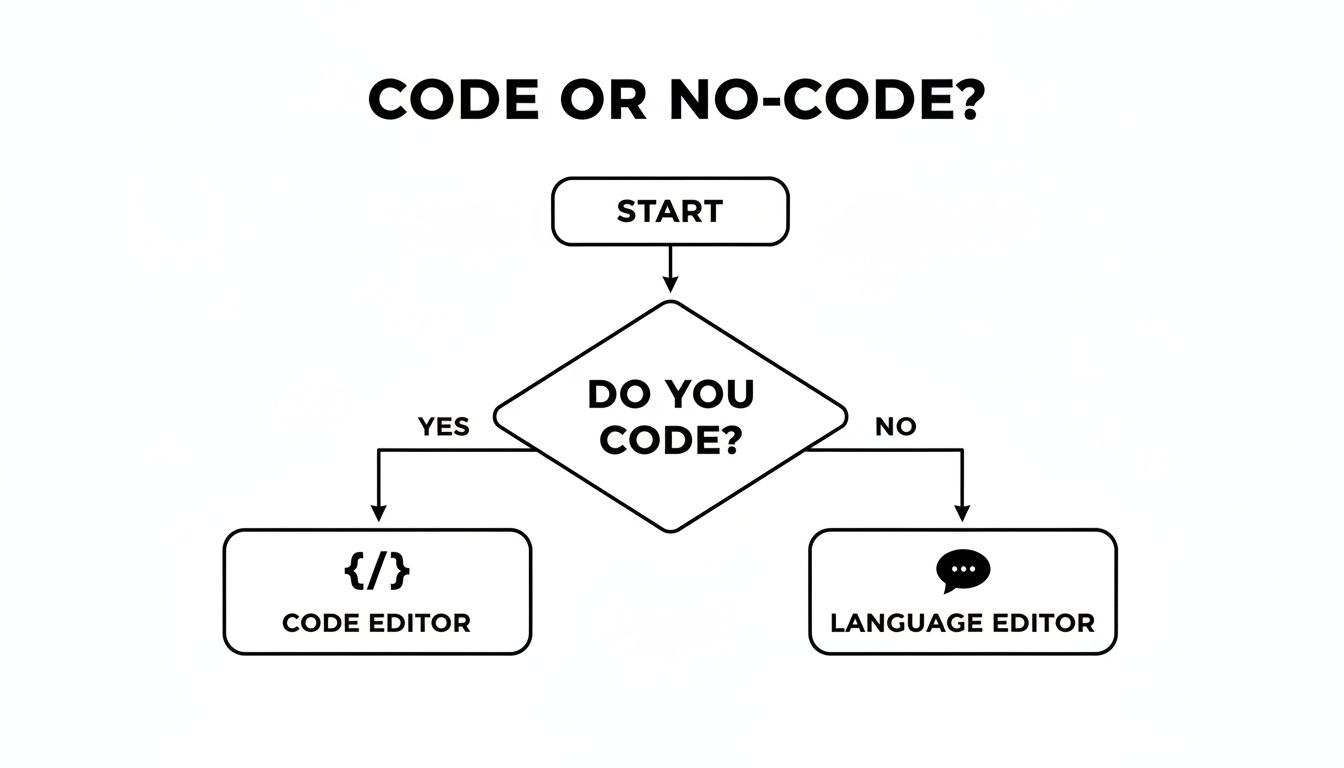
It really just boils down to your comfort level. Editing the code is a one-and-done solution, while the language editor method we discussed earlier offers a faster, easily reversible alternative.
Choosing Your Removal Method
To help you decide at a glance, here’s a quick comparison of the common methods.
| Method | Difficulty | Best For | Potential Risk |
|---|---|---|---|
| Theme Customizer | Easiest | Shopify 2.0 themes with a checkbox option. | Limited availability; not all themes have this built-in. |
| Language Editor | Easy | A quick, code-free fix that works on any theme. | Text may reappear if the theme is updated or language is changed. |
| Code Editor | Intermediate | A permanent, clean removal for those comfortable with code. | Risk of breaking your site if the wrong code is deleted. Always back up first! |
| CSS Override | Advanced | Hiding the text when direct code access is difficult. | Can affect SEO as the text is hidden, not removed. Not a true fix. |
For a permanent solution that gives you full control, let’s stick with the code editor.
Getting Into the Theme Files
With your backup safely stored, you're ready to make the change. Go back to the Themes page, click the three-dot icon on your live theme, and this time, select Edit code.
You'll land in the Shopify theme editor, which shows you all the files that power your storefront. It can look a little intimidating, but don't worry—you only need to find one specific file.
In the file browser on the left, look for a folder named Sections. Click to open it, then scroll down until you find footer.liquid. This is the file that controls your store's footer content.
Finding and Deleting the Snippet
Now that you have the footer.liquid file open, you just need to locate the small piece of code responsible for the message. The quickest way is to use the search function. Just press Ctrl + F (on Windows) or Cmd + F (on a Mac) to open a search bar within the editor.
Type powered_by_link into the search box.
This will instantly highlight the exact line you need to remove. It usually looks something like this:
<small class="copyright__content">{{ powered_by_link }}</small>
Your job is to carefully select this entire line—or at least the {{ powered_by_link }} part—and hit delete. Once it's gone, click the Save button in the top-right corner. And that's it! The "Powered by Shopify" text has been permanently erased from your footer.
This is by far the most common method used by store owners. By early 2025, an estimated 1.5 million Shopify stores—around 71% of all active sites—have performed this exact edit. For modern themes like Dawn, which is used by 40% of new stores, removing the {{ powered_by_link }} variable is the standard fix for 92% of experienced users.
If you're dealing with a highly customized theme or just aren't comfortable making these changes yourself, it might be worth bringing in a professional. You can always engage advanced Shopify development services to handle it for you.
And if you're looking for more ways to make your store uniquely yours, take a look at our complete guide on how to customize Shopify themes.
Hiding the Text with a Simple CSS Trick
Sometimes, editing the theme language or digging through code just isn't the best option. Maybe the language editor isn't working for your specific theme, or perhaps your footer.liquid file is so heavily customized that finding that one little {{ powered_by_link }} snippet feels impossible.
When you're in that spot, there’s a much faster alternative: a single line of CSS that makes the text disappear.
This method is my go-to fallback. It doesn't actually delete the "Powered by Shopify" text from your site's code. Instead, it just tells browsers not to show it. Think of it like putting an invisibility cloak over the link—it's still there, but no one can see it.
Accessing Your Theme's CSS File
First things first, you'll need to head back into your theme's code. From your Shopify admin, go to Online Store > Themes. Find your current theme, click the three-dot menu, and choose Edit code.
Once you're in the code editor, look for a folder on the left called Assets. This is where your theme's stylesheets live. The exact file name can differ between themes, but you're usually looking for one of these:
base.csstheme.cssstyle.scss.liquid
Click on that file to open it up. This is the spot where you can add your own custom styles to override how your theme looks by default.
My Advice: Don't let all that code intimidate you. You don't need to understand any of it. All you have to do is scroll to the very bottom of the file to add one new line.
Adding the CSS Snippet
At the very bottom of the CSS file, paste this snippet in exactly as you see it here:
.powered-by-link { display: none; }
This little command targets the HTML element containing the "Powered by Shopify" link (which almost always has the class .powered-by-link) and tells the browser not to display it. It’s a clean and simple way to hide it from view on your live site.
After pasting the code, just hit the Save button in the top right. That’s it! You've successfully used CSS to visually remove the "Powered by Shopify" text from your footer.
This is an incredibly fast fix, especially if you're working with a complex or highly customized theme. The only real drawback to keep in mind is that while the text is hidden from your visitors, the link itself still exists in your site's HTML source code. For most stores, this is a non-issue, but it's the key difference between this method and actually deleting the code from the footer.liquid file.
What to Put in Your Footer Instead
Alright, so you’ve cleared out that default "Powered by Shopify" text. Now you've got some prime real estate at the bottom of every single page on your site. Don't let it go to waste. This space is your chance to build trust, answer last-minute questions, and subtly guide visitors where you want them to go.

Think of the footer as a final handshake. It's often the last thing a potential customer sees before they decide to either buy from you or click away. A well-thought-out footer can be the safety net that catches hesitant shoppers and gives them the confidence they need to make a purchase.
Build a Foundation of Trust
First things first, your footer needs to scream "legitimate business." Shoppers are savvy, and they instinctively scroll down to the footer to look for signs that a store is real and trustworthy. Skipping this step is a good way to lose sales.
Start with the absolute must-haves:
- Payment & Security Badges: Nothing says "your payment is safe" quite like the logos of Visa, Mastercard, and PayPal. Displaying these instantly puts shoppers at ease.
- Essential Policy Links: Don't make people hunt for your policies. Clear links to your Shipping Policy, Return Policy, Privacy Policy, and Terms of Service show you're a professional operation with nothing to hide.
- Contact Information: A link to a "Contact Us" page, a phone number, or even a physical address tells customers you're a real business with real people behind it.
This isn't just a hunch; it's what successful merchants do. In fact, over 70% of them remove "Powered by Shopify" specifically to make room for these critical trust signals. Some A/B tests have even shown that stores without the platform branding can see a 12-18% lift in add-to-cart rates simply because they appear more independent and established.
Drive Engagement and Conversions
Once you've built that foundation of trust, you can use the footer to actively work toward your business goals. It's the perfect spot to capture leads and keep people connected to your brand long after they've left your site.
A great footer doesn't just end the page—it starts a new conversation. By adding a clear call-to-action, you give every visitor a next step, turning a simple page view into a potential long-term relationship.
Why not add a newsletter sign-up form? A simple "Get 10% off your first order" can be incredibly effective at building your email list. You should also include icons that link directly to your social media profiles. It's an easy way to grow your community and give customers another way to follow your brand.
Every element in your footer should have a purpose. When planned correctly, it can become a powerful tool for building a stronger, more profitable brand. To see how these pieces fit into the bigger picture, take a look at our guide on the best ecommerce website design principles.
Answering Your Lingering Questions
Even when the steps seem simple, tweaking your store's design can feel a little nerve-wracking. Let's tackle some of the most common questions that pop up so you can move forward with confidence.
Is It Okay to Remove the "Powered by Shopify" Link?
Yes, absolutely. You are 100% allowed to remove this text. Shopify fully expects merchants on any paid plan to customize their storefronts to match their brand, and this is considered a standard part of that process.
Think of it this way: their goal is for your business to succeed. A clean, professional, and on-brand website is a huge part of that. Removing their branding isn't breaking a rule; it's just good business.
Will This Mess Up My Store's SEO?
Not at all. Removing the "Powered by Shopify" text won't hurt your store's SEO. If anything, it’s a tiny, indirect plus for your site.
You’re essentially removing an external link that sends visitors away from your store. You can then use that valuable footer space for internal links—think your Refund Policy, About Us page, or Contact Us form. This helps both your customers and search engine crawlers understand and navigate your site better. While it’s not a major SEO game-changer, it’s a solid move for branding and site structure.
At the end of the day, your goal is a seamless brand experience. Getting rid of unnecessary external links, even a small one like this, keeps the focus right where it should be: on your products and your story. That builds trust, and trust is always good for business.
I Updated My Theme, and the Text Came Back. What Happened?
This is a classic—and definitely frustrating—problem. It almost always means you edited the theme code directly. When you update a theme, you're essentially installing a brand-new, clean copy. That new version completely overwrites all the custom code changes you painstakingly made to the old one.
This is exactly why the language editor method is my go-to recommendation. Those changes are stored in your store's settings, not the theme files, so they typically survive updates without any extra work. If you prefer editing the code, just make a note to re-apply your changes every time you update your theme.
I Can't Find the Text in the Language Editor. Now What?
Don't worry, this happens sometimes. If searching for "powered" in the language editor comes up empty, try the simple stuff first: double-check that you actually hit "Save," and then clear your browser's cache to make sure you're not looking at an old version of the page.
If it's still there, your theme likely has the text hard-coded in a way the language editor can't see. When that happens, it's time to pivot to one of the other methods:
- Jump into the theme code: A quick search for
powered_by_linkin yourfooter.liquidfile (or a similar footer section file) will almost certainly find it. - Use the CSS override: This is a fantastic fallback. It doesn't technically remove the text, but it hides it from view, which accomplishes the same goal.
One of these approaches will work for just about any theme out there.
Cleaning up your store’s appearance is a great first step, but so is getting your workflow in order. For dropshippers who need to grab high-quality product media from AliExpress without the hassle, AliSave Pro is a must-have tool. You can download unlimited product images, variant photos, and videos with just one click, all neatly organized for you. It's the fastest way to build stunning product pages that actually convert. You can get the free extension at https://alisavepro.com.