
Before you try to change the currency on eBay, it’s important to get one thing straight: what you see while browsing isn't always what you'll pay. eBay has a two-part system for currency that can trip up even experienced shoppers. Understanding this difference is the secret to avoiding any surprises at checkout when you're buying internationally.
The Two Sides of eBay's Currency System
Let's break down what's happening behind the scenes. When you're looking at items from sellers around the world, eBay is juggling two different currencies to make the experience smoother. Getting a handle on how they work is key.
Display Currency: Your Browsing Buddy
The display currency is simply the currency you see prices in as you scroll through listings. Think of it as a helpful converter. It takes the seller's price and gives you a real-time, approximate value in your own local currency.
So, if you're in the United States looking at a watch listed by a seller in the UK, eBay will show you an estimated price in US Dollars (USD) instead of making you do the math from British Pounds (GBP). This is purely for your convenience, and you can change it.
Listing Currency: The Final Price Tag
The listing currency is the price the seller set when they originally created the listing. This one is set in stone; you can't change it. The final payment you make will always be based on this currency.
For example, a seller in Japan lists a camera for ¥10,000. When you buy it, your bank or PayPal will charge you whatever their current exchange rate is for ¥10,000, not the estimated dollar amount you saw on the listing page. You can get more familiar with how your account's region affects these settings in our guide on how to create a new eBay account.
Key Takeaway: The price you see while browsing is just a good-faith estimate. The actual amount charged to your card is based on your payment provider's conversion rate from the seller's original currency at the moment you pay.
This dual-currency approach is what makes eBay's massive global marketplace work. The platform connects buyers and sellers across more than 190 markets worldwide, and with a huge chunk of its revenue coming from international sales, this system is essential for keeping everything running smoothly.
Display Currency vs. Listing Currency at a Glance
Here's a quick breakdown of what you see versus what you actually pay.
| Attribute | Display Currency | Listing Currency |
|---|---|---|
| Purpose | For your browsing convenience | The actual price set by the seller |
| Who Controls It? | You, the buyer | The seller |
| Flexibility | Can be changed easily | Fixed and cannot be changed |
| Accuracy | An estimate based on mid-market rates | The exact amount for the transaction |
| Checkout Impact | Not used for the final payment | Used for the final payment processing |
Ultimately, knowing the difference helps you shop smarter and avoid the classic "wait, why was I charged that much?" moment after buying from an international seller.
Changing Your Display Currency on a Desktop
If you're browsing eBay on a laptop or desktop computer, changing the currency you see is pretty simple. It’s all tied to how the site figures out where you are and where you want items shipped.
The quickest trick is to just change your “Ship to” location. You’ll usually spot this right at the top of the eBay homepage. For instance, if you’re in the US but hunting for a gift for a friend in the UK, switching your shipping location to the United Kingdom will almost always make prices flip from USD to GBP.
The Direct Method: Customizing Your View
For a more deliberate approach, head to a search results page. Once you've searched for something, look near the top right, usually next to the sorting options. You should find a “View” or “Customize” button.
Clicking this opens up a menu where you can manually select your preferred currency. The best part? You can often choose to see prices in your currency right next to the seller's original listing currency. This is a game-changer for international shoppers trying to get a real feel for the cost without constantly pulling up a converter.
Pro Tip: Being able to see both currencies side-by-side is incredibly helpful. It takes the guesswork out of conversions and gives you a much clearer picture of what you're actually spending, especially when you're comparing items from different countries.
This whole process—from what you see on the screen to what you actually pay—can seem a bit confusing. This visual breaks it down nicely.
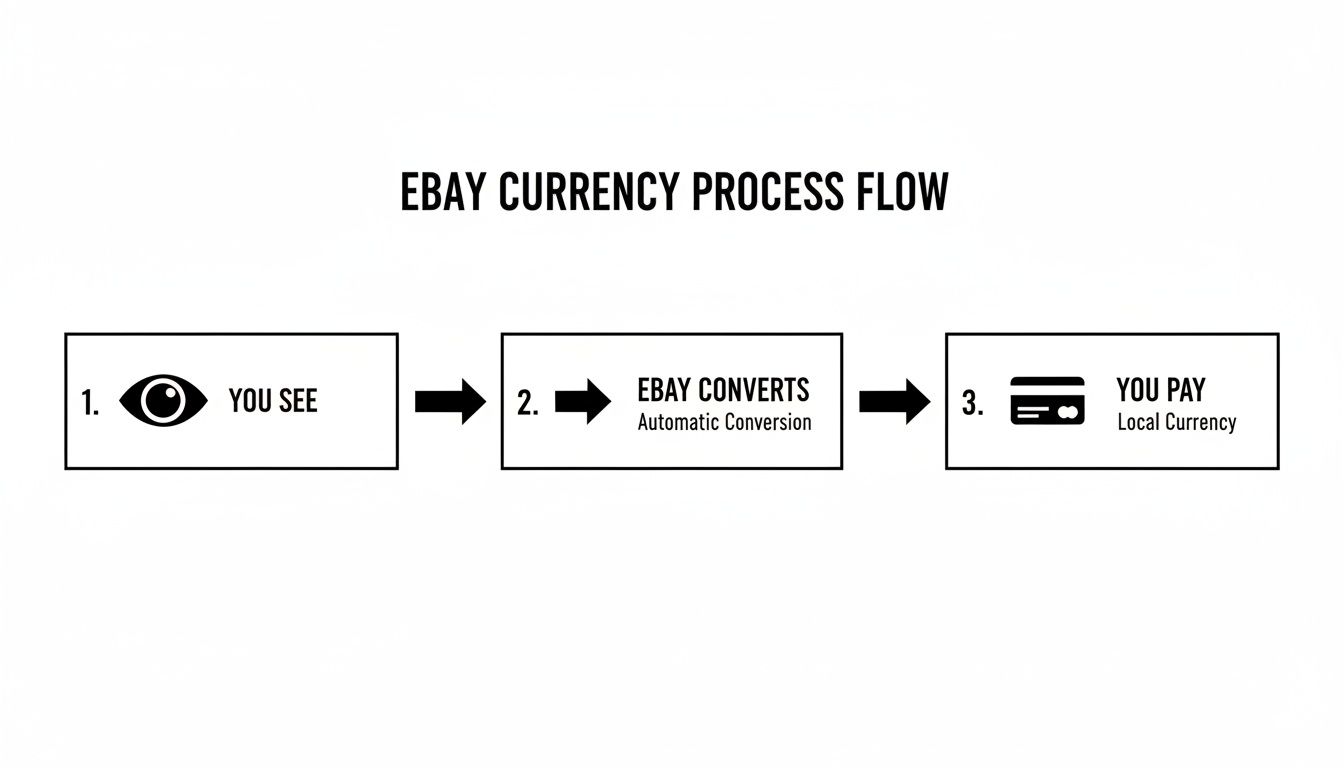
As you can see, the currency displayed is just for your convenience. The real transaction happens in the seller’s original currency, and your bank or PayPal handles the actual exchange.
Making It Stick
Want your currency settings to be there next time you shop? Just make sure you’re logged into your eBay account when you make the change. eBay saves these preferences to your profile.
If you find that your settings keep reverting, a quick clearing of your browser's cache and cookies often does the trick to fix the problem.
Managing Currency Settings on the eBay Mobile App
Shopping from your phone is second nature for most of us now. It's no surprise that more than 50% of all eBay sales happen on mobile devices, with a staggering 66 million people using the app every month. When you're browsing on the go, you need to see prices in a currency you understand.
Fortunately, adjusting your settings is pretty simple, though the steps are a bit different depending on whether you're using the dedicated app or your phone's web browser.
Adjusting Currency in the App
If you're using the eBay app for iOS or Android, the currency you see is tied directly to your account's primary country setting. To switch it, you'll have to dive into the settings menu.
Here’s how to get it done:
- First, open the app and tap on My eBay in the navigation bar at the bottom.
- Scroll down the page until you find and select Settings.
- From there, look for an option like Country/Region.
- Just pick the country whose currency you want to see. For instance, if you switch your region to the "United Kingdom," prices will start showing up in British Pounds (GBP).
The app should then automatically update and remember your choice for the next time you open it.
A Quick Heads-Up: The mobile app doesn't have a simple currency dropdown like the desktop site. Changing your currency is all about changing your country or region setting—they're linked together.
Using the Mobile Website
What if you're just using a browser like Chrome or Safari on your phone? The experience here is much closer to the desktop version. You won't find a currency switch in your main account settings.
Instead, just scroll all the way down to the bottom of the eBay homepage. In the footer area, you'll see a little flag icon and the name of the current country site you're on. Tap that, and you can easily switch to a different eBay site (like from eBay.com to eBay.ca), which instantly changes the currency for all listings.
A Seller’s Guide to International Currencies
If you’re selling on eBay, dealing with different currencies is about much more than just what you see on the screen—it's about protecting your bottom line. When a buyer from another country clicks "Buy It Now," eBay’s Managed Payments system kicks in to handle the cross-border sale, but there are a few moving parts you need to keep an eye on.
Let's say you're based in the US, and a customer in the UK buys one of your items. They'll pay you in British Pounds (GBP). eBay takes care of everything behind the scenes, converting the funds into your payout currency (USD) before it ever hits your bank account. It’s a smooth process, but it isn’t free.
Understanding Payouts and Fees
Every time eBay converts currency for you, they charge a currency conversion fee. This is a percentage taken from the total sale amount, and it’s deducted before you get your payout. It’s simply part of the cost of selling internationally, but if you haven't factored it into your pricing, it can slowly chip away at your profits.
On top of that, you have to consider fluctuating exchange rates. The rate when the buyer pays might be different from the rate when eBay actually processes your payout a day or two later. That tiny difference can impact your final earnings. Many experienced sellers build a small buffer into their international pricing to absorb these little shifts. A solid eBay listing optimization strategy can also boost your sales to help make up for these costs.
The scale of eBay is massive, with around 2.4 billion live listings at any given time. This global marketplace thrives on international sellers. In fact, 31% are from the U.S., 29% are from the UK, and many more are from Germany and China, which shows just how crucial multi-currency features are to the platform's success. You can find more details on this global seller distribution on chargeflow.io.
For those who sell regularly to different countries, managing all these moving financial parts can get complicated. Using a good multi-currency accounting software can be a game-changer, helping you accurately track your sales, fees, and real profit margins across all the different currencies you deal with.
Troubleshooting Common Currency Problems
Even after you know the ropes, eBay can sometimes throw you a curveball. You might change your currency settings, only to find them mysteriously switched back on your next visit. It’s a common frustration, but the fix is usually simpler than you’d think once you understand what's happening behind the scenes.
One of the most frequent hiccups is having the currency revert to a default, which is often USD. This isn't a bug; it's typically eBay making an educated guess about your location from your device's data or network. If you've been window shopping without logging in, your preferences simply won't be saved.

Why Your Settings Won't Stick
When your currency choice keeps flipping back, it’s almost always tied to one of three things: your browser data, your shipping address, or your internet connection. Old site data stored in your browser's cache and cookies can sometimes clash with your new preferences, causing the site to load the old settings.
eBay’s system also heavily relies on your primary shipping address to set a default currency. If you live in the United States, it makes sense that eBay will default to showing you prices in USD. Making sure this address is up-to-date is a critical first move. It's worth understanding the difference between a shipping and billing address to see how they affect your account settings.
Here's a sneaky culprit many people miss: a VPN. If you're using a VPN routed through a server in another country, eBay will see that location and change the currency to match—completely ignoring the settings you just saved.
Solutions for Frequent Issues
If you're stuck in a currency loop, running through these quick checks will almost always get things sorted.
- Clear Browser Cache and Cookies: This is the tech equivalent of "turn it off and on again." It wipes the slate clean, forcing your browser to grab the latest settings from eBay instead of using outdated, stored info.
- Verify Your Primary Address: Pop into your account settings under "Addresses." Double-check that your main shipping location is set to the correct country. This is the biggest clue you can give eBay about your home region.
- Log In Before You Browse: This is a simple but powerful habit. Always sign in before you start searching. This ensures eBay loads your preferences, not its own default ones.
Tackling these key areas usually resolves any stubborn currency display issues, letting you get back to shopping with clear, accurate pricing.
Your Top eBay Currency Questions Answered
Jumping into a global marketplace like eBay naturally brings up a few questions about currencies. Let's get right into the most common ones so you can get back to your bidding and buying.
Does Changing the Display Currency Actually Change the Item's Price?
Nope, it doesn't. Think of the display currency as a handy calculator that gives you a ballpark figure in a currency you're familiar with. The seller sets a firm price in their own currency (the listing currency), and that's the real price of the item.
When you change your display settings, you're just seeing an estimate. The actual final transaction happens in the seller's original currency. Your bank or PayPal then handles the conversion on their end, using whatever exchange rate is active at the very moment you pay.
Why Can't I Change the Currency for Just One Specific Listing?
This is a common point of confusion. You can't change the currency for an individual listing because that price is locked in by the seller from the moment they list the item. What you can control is the display currency—how that price is shown to you across the site.
The seller's currency is determined by which eBay site they use to list their product. For instance:
- An item on eBay.com will be priced in US Dollars (USD).
- Something listed on eBay.co.uk will naturally be in British Pounds (GBP).
Here's the key thing to remember: The seller's listing currency is a fixed detail of the item. Your power lies in changing how that price is displayed for your own convenience while browsing.
How Does PayPal Deal With Currency Conversion on eBay?
When you head to checkout with PayPal for an item priced in another currency, the conversion happens automatically. You'll usually see two options right before you confirm your payment. You can either let PayPal handle the conversion using its rate, or you can choose to have your credit card billed in the seller's currency and let your own bank do the math.
It’s always a good idea to take a second and compare. Often, credit card companies offer slightly better exchange rates than PayPal, which can shave a little off the final price you pay. It pays to check