
Think of Shopify tags as the secret weapon in your dropshipping arsenal. They’re basically customizable labels you can attach to just about anything in your store—products, orders, customers—to help you sort, search, and manage your day-to-day operations. Getting the hang of tags on Shopify is a fundamental skill that can turn a messy, chaotic inventory into a smooth, scalable system.
What Are Shopify Tags And Why Are They Essential?
Here’s a simple way to look at it: imagine your store is a giant library. The traditional categories are the main sections—think "Fiction," "Non-Fiction," or "History." They’re broad and rigid; a book can only live in one section.
Shopify tags, on the other hand, are like the small, colorful sticky notes you can slap on any book. A single novel could have tags like "mystery," "bestseller," "new-author," and "beach-read" all at the same time.
This flexibility is what makes tags so incredibly powerful. You’re not stuck with a one-dimensional filing system. Instead, you get a dynamic, multi-layered one that adapts to your needs. This is a lifesaver for dropshippers who might be importing hundreds of different products from various suppliers. Seeing how Shopify stacks up against the best ecommerce platforms for small business often comes down to these smart inventory management features.
The Core Purpose Of Shopify Tags
At their heart, tags have one simple job: to bring order to chaos. They are just keywords or labels that let you group related things together, even if they live in completely different corners of your store. This opens up a world of new ways to organize, filter, and even automate your business.
- For Products: You could tag items with specific attributes like
color-red,material-cotton, or promotional markers likesale-2024. - For Orders: Tags like
pre-order,fragile-item, orvip-customercan make your fulfillment process a whole lot smoother. - For Customers: You can segment your audience with tags like
repeat-buyer,newsletter-subscriber, orlocal-deliveryfor targeted marketing.
A Game-Changer For Dropshippers
For anyone in the dropshipping game, tags aren't just a nice-to-have; they're an absolute necessity. With over 4.8 million active Shopify stores out there, many merchants are juggling huge product catalogs. More than two million stores list between 10 and 50 products, while nearly a million manage up to 500 items. Trying to handle that kind of volume without a smart tagging system is a recipe for disaster.
If you’re just starting out, you can get the full rundown on building a solid foundation in our guide on how to start dropshipping. Applying a simple tag like summer-dress allows you to instantly create a new collection, which makes it much faster for customers to find what they want.
For AliSave Pro users who download media in a single click, adding tags during bulk uploads is a crucial step. It keeps your products organized, prevents duplicates, and dramatically improves site navigation. This is especially important when you consider that 79% of Shopify traffic is mobile, where a slow, clunky experience will kill your conversions in a heartbeat. For a deeper dive, check out this complete breakdown of Shopify statistics.
How to Use Tags for Real E-commerce Growth
Thinking of Shopify tags as just simple labels is like having a race car and only driving it to the grocery store. You're missing the point. When you learn how to use them correctly, tags become the secret weapon for automating your store, making customers happier, and actually growing your business. They’re the bridge between your behind-the-scenes organization and your bottom line.
So, let's stop just organizing and start strategizing. Here are four powerful ways to turn your tagging system into a real competitive advantage—methods designed to save you time, improve the shopping experience, and boost your sales.
Build Powerful Automated Collections
Forget about manually building collections. That's old news. With tags, you can create smart, self-updating collections that run on autopilot, which is a total game-changer for running sales or managing new inventory.
Let's say you want a "New Arrivals" collection. Instead of dragging and dropping every new product into it, you just set up an automated collection with one simple rule: Product tag is equal to 'new-arrivals'.
That's it. Now, any new product you add with that tag instantly shows up in the collection. When you remove the tag, it disappears. No more manual updates. You can apply this logic to anything you can think of:
- Seasonal Sales: Use a
summer-sale-2024tag to instantly pull all relevant products into a sales category. - Bestsellers: Tag your top-performing items with
bestsellerto create a curated list that practically sells itself. - Themed Promotions: Planning a holiday promotion? A
gift-guidetag can group all your best gift ideas in one place.
This kind of automation frees you from endless, tedious work and makes sure your storefront is always accurate and fresh.
Enhance Storefront Search and Filtering
A confusing store is an empty store. Tags are the key to building a smooth filtering system that helps people find exactly what they want, fast. When customers can easily narrow down their options, they’re far more likely to click "buy."
Think about it: a shopper looking for a red cotton t-shirt shouldn’t have to scroll through pages of blue polyester shirts. They should be able to find it in two clicks. Tags make that possible.
You can use tags to let customers filter by just about any detail imaginable:
- Color:
color-black,color-blue - Material:
material-leather,material-suede - Style:
style-vintage,style-modern
This level of detail is absolutely essential in crowded markets. Tags have been a core feature for scaling stores since 2006. Today, they're a cornerstone for 16.65% of stores using Shopify's popular Dawn theme, where tag-based filters are responsible for driving a whopping 18% of their Google Shopping traffic.
For dropshippers, a common winning strategy involves using a tool like AliSave Pro to import dozens of product images and then tag them with hyper-specific details (e.g., bag-leather-black-current-year). This approach has helped jewelry and bag stores thrive on personalization, while beauty brands use it to run TikTok campaigns that convert 60% better than their standard ads. For a deeper dive into these kinds of numbers, you can find more Shopify statistics on Chargebacks911.
Segment Customers for Targeted Marketing
Sending the same email blast to every single customer just doesn't work anymore. Shopify tags let you slice your customer list into targeted groups based on what they actually do, which leads to marketing that people actually want to read.
By tagging customers, you can build custom audiences for your email or social media campaigns. You can tag them based on what they've bought (purchased-skincare), how much they spend (vip-customer), or even where they live (local-delivery). This means you can send relevant offers that feel personal, leading to way more engagement and repeat business.
A Practical Guide to Managing Your Shopify Tags
Knowing why you should use tags is one thing, but actually keeping them organized is what separates a tidy, efficient store from a chaotic one. Let's get our hands dirty and walk through the real-world methods for adding, editing, and removing your Shopify tags.
The most direct way to handle tags is one product at a time. Just open up a product page in your Shopify admin, and you'll spot the "Tags" field on the right-hand side. You can type in new tags right there—just separate them with a comma—or click the little 'x' on an existing tag to get rid of it.
This manual approach works perfectly for quick, one-off tweaks, but it’s a massive time sink if you're managing a large catalog. That's when you need to bring out the big guns: Shopify's bulk editor.
Mastering the Bulk Editor
Think of the bulk editor as your command center for managing tags across dozens, or even hundreds, of products at once. It saves an incredible amount of time and helps keep your tagging system consistent.
Here’s the simple rundown on how to use it:
- Head over to Products in your Shopify admin.
- Check the boxes next to all the products you want to tag.
- Click the Bulk edit button that pops up.
- In the editor view, click Columns and make sure the "Tags" field is visible.
- Now you've got a spreadsheet-like view where you can add, remove, or completely replace tags for all the products you selected.
This is the exact process you’d use for something like adding a flash-sale tag to an entire collection or clearing out an old holiday-2023 tag from last year's inventory.
Pro Tip: When you're in the bulk editor, look for the "replace tags" option. It's a lifesaver. It wipes out all existing tags and applies only the new ones you specify, which is a clean way to avoid leaving old, irrelevant tags behind by accident.
Using CSV Imports for Mass Tagging
If you're a dropshipper launching a new store or just adding a huge batch of new products, the CSV import is your best friend. When you're getting your product CSV file ready for upload, you'll see a dedicated "Tags" column.
You can fill this column with all the right tags for each product before you even upload anything to Shopify. This is a go-to workflow for store owners who want to get everything organized from the very beginning. A properly set up CSV means every single product is perfectly categorized the second it hits your store. This behind-the-scenes setup is just as crucial as your store's visual appeal; learning how to customize Shopify themes ensures your tags and design work together for a great customer experience.
The journey from a messy tag system to a well-oiled machine looks something like this:
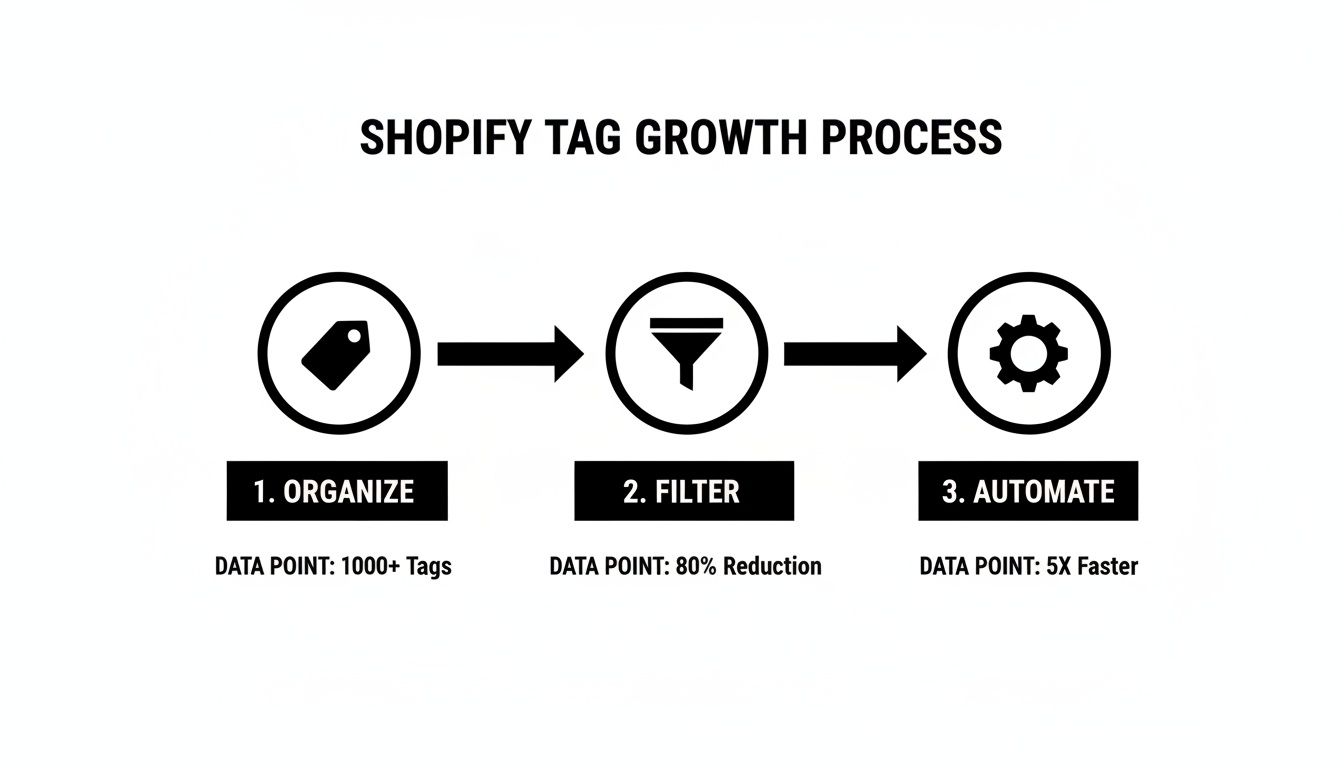
As you can see, it all starts with solid organization. That foundation lets you filter effectively, which then opens the door to powerful, time-saving automation across your entire store.
Best Practices for a Scalable Tagging System
Let's be honest, without a solid plan, your Shopify tags can go from a handy tool to a chaotic mess in a hurry. A messy system grinds automation to a halt and makes storefront filtering a nightmare for your customers. Building a clean, scalable tagging system from the start is one of the smartest things you can do for your store's long-term health.
Think of it like setting up a filing system for an entire library. It needs clear rules and consistency to work. The goal is to create a predictable structure that anyone on your team can understand and use correctly. This is how you avoid the chaos of having multiple tags for the same exact thing, like sale, Sale, and on-sale all floating around.
Establish Clear Naming Conventions
First things first: you need a standardized format for every single tag you create. Consistency is everything. If you don't enforce one style, you'll inevitably end up with duplicate tags that split your products, break your automated collections, and cause endless frustration.
Here are a few simple, effective rules to live by:
- Stick to lowercase: This instantly solves any confusion between
Blueandblue. - Use hyphens instead of spaces: A tag like
summer-saleis much cleaner and more reliable for systems to read thansummer sale. - Decide on singular vs. plural: Are you going to use
shirtorshirts? Pick one and stick with it for everything. I generally find singular is easier to manage. - Avoid special characters: Just stick to the basics: letters, numbers, and hyphens. Anything else is asking for trouble.
By creating a simple, repeatable format, you're not just organizing products—you're building a solid foundation for your store's future. A little bit of discipline now prevents a massive cleanup headache later.
A good naming convention is the cornerstone of a functional tagging system. To help you visualize this, here’s a quick guide on what to do and what to avoid.
Tag Naming Convention Do's and Don'ts
| Guideline | Do (Good Example) | Don't (Bad Example) |
|---|---|---|
| Use Lowercase | color-blue |
Color-Blue, COLOR-BLUE |
| Use Hyphens for Spaces | new-arrival |
new arrival, new_arrival |
| Be Consistent with Plurals | material-cotton |
materials-cotton (if others are singular) |
| Avoid Special Characters | holiday-promo-2024 |
holiday/promo#2024 |
| Be Specific & Clear | supplier-alpha |
supp_a, from_alpha |
Following these simple rules will keep your backend tidy and your automations running smoothly.
Create a Tag Dictionary for Your Team
As your business grows, more people will inevitably get their hands on your product catalog. To keep everyone on the same page, create a "tag dictionary." This doesn't need to be complicated—a shared Google Sheet works perfectly.
This document becomes your single source of truth, listing all approved tags and explaining what they're used for. It stops team members from inventing new tags on the fly. When someone needs to tag a product for a holiday sale, they'll know to use the official holiday-2024 tag instead of making up a rogue one like xmas-promo.
Use Logical Tag Groups
To really unlock the power of your system, start grouping your tags by what they do. This strategic approach forces you to think about each tag's purpose, not just what it describes. It organizes your thinking and makes building automations a breeze.
Here are three core groups to get you started:
- Attribute Tags: These describe a product’s specific features. They’re perfect for powering storefront filters, letting customers drill down to find exactly what they want.
- Examples:
color-black,material-cotton,size-large,style-vintage.
- Examples:
- Collection Tags: You'll use these to group products for merchandising, usually for your automated collections.
- Examples:
new-arrival,bestseller,summer-collection,flash-sale.
- Examples:
- Workflow Tags: These are purely for your internal team to manage backend processes. They should never, ever be visible to customers.
- Examples:
needs-photos,low-stock,return-item,supplier-x.
- Examples:
By adopting these practices, you'll transform your Shopify tags from simple labels into a powerful framework for organization, automation, and growth.
Using Tags to Automate Your Shopify Store
This is where tags on Shopify really come alive. We're moving beyond simple organization and turning them into powerful triggers that can automate huge chunks of your daily work. When you set up smart workflows, you get back countless hours, slash human error, and build a store that practically runs itself.
Think of tags as the "if" in an "if this, then that" command. For Shopify Plus users, the go-to tool for this is the native Shopify Flow app. But don't worry if you're not on Plus—a whole ecosystem of third-party apps can plug right into your tagging system to get the same job done.
Creating Intelligent Workflows
The concept is beautifully simple: when a certain tag gets added to (or removed from) a product, order, or customer, it sets off a specific, pre-planned action. This allows you to automate tasks that would otherwise eat up your time with constant manual checks.
Here are a few ways this can look in the real world:
- Inventory Management: You tag a product with
low-stock. The system automatically hides it from your store, so you never have to worry about overselling. - Fulfillment Alerts: An order comes in for a delicate vase. Tagging it
fragilecan instantly send a special note to your fulfillment team or dropshipping supplier. - Customer Segmentation: A customer just crossed the $500 lifetime spending mark. An automation rule can instantly add a
vip-customertag to their profile, maybe even unlocking exclusive perks.
Automation isn't just about speed. It's about consistency and professionalism. A simple tag ensures a VIP gets the right treatment or a fragile item gets packed correctly—every single time, without fail.
Automating Customer Communication
One of the biggest wins with tag automation is connecting it to your marketing. When you tag a customer based on what they bought, like purchased-skincare, you can automatically enroll them in a targeted email sequence. This is how you build truly effective automated email marketing campaigns that send relevant follow-ups and cross-sells without you lifting a finger. That kind of personal touch is what keeps customers coming back.
You can also use tags to trigger internal alerts for your team. Imagine an at-risk tag being automatically applied to a customer who hasn't bought anything in six months. This could create a task for your support team to reach out with a personal discount code.
If you're ready to get even more advanced with tracking, check out our guide on using https://alisavepro.com/google-tag-manager-on-shopify/ to supercharge your store's data and automation power.
Let's face it, even the most organized tagging system can go haywire sometimes. When your Shopify tags start acting up, it can throw a real wrench in your store's navigation and your internal processes. But don't panic—most of these issues are surprisingly easy to fix once you know what to look for.
One of the biggest headaches is when your product tags just refuse to appear as filters on your collection pages. You know you've tagged everything correctly, but the filters aren't there. This is almost always caused by one of two things: a simple typo or your theme's settings. A tag like color-blue is completely different from colour-blue in your filter's eyes.
Nailing Down Common Tag Glitches
Another classic problem is the bulk editor seemingly ignoring your changes. You spend time adding tags to dozens of products, hit save, and… nothing. This often happens when you bump up against Shopify's limits. Each product can only have 250 tags, and each tag can be no more than 255 characters long. If you go over, the save might fail silently, leaving you wondering what went wrong.
Here are a few other common tripwires I see all the time, along with how to sidestep them:
- Blog Tags vs. Product Tags: This is a big one. It's easy to assume these are connected, but they live in separate worlds. Tagging a product
bestsellerwon't automatically link it to a blog post with the samebestsellertag. Blog tags are just for organizing your articles, nothing more. - Missing Blog Filters: Speaking of blogs, you might notice that tag filters don't show up there. Many popular Shopify themes (including the default Dawn theme) don't have this feature built-in for blog pages. You’ll likely need an app or a bit of custom code to add it.
- The Case Sensitivity Trap: On the backend, Shopify doesn't care about case—
Saleandsaleare treated as the same tag. However, the apps you use or your theme's code might be case-sensitive. To save yourself future trouble, get in the habit of using a consistent, all-lowercase format for every tag.
Pro Tip: Before you start pulling your hair out, do a quick check of your theme's settings. Go to the theme editor, navigate to a collection page, and look for the filtering options. Making sure tags are actually enabled as a filter solves the problem more than half the time.
Your Shopify Tag Questions, Answered
Even with a solid plan, you're bound to run into specific questions as you start working with Shopify tags. Let's clear up some of the most common ones so you can use tags with total confidence.
Do Shopify Tags Help With SEO?
This is a great question, and the answer is a bit nuanced: no, but also yes.
Product tags themselves aren't directly read or indexed by Google. However, what you do with them absolutely impacts your SEO. When you use tags to build well-organized collection pages and intuitive search filters, you create a much better experience for your customers.
A better user experience means people stick around longer and bounce less often. These are huge positive signals to search engines. Plus, you can create very specific, tag-based collection pages (like one for vintage-denim-jackets) that can be optimized to rank for those valuable long-tail keywords.
What Is the Difference Between Product Tags and Product Type?
The easiest way to think about this is flexibility. A product can only have one Product Type, but it can have tons of Product Tags.
Think of Product Type as the big, non-negotiable bucket your item belongs in—like "T-Shirt" or "Coffee Mug." It’s a required, top-level category. Product Tags, on the other hand, are all the extra descriptive labels you want to add. That "T-Shirt" could have tags like cotton, v-neck, graphic-print, and bestseller.
Rule of thumb: Use Product Type for your store's fundamental structure. Use tags for everything else: filtering, running automations, and building those smart, dynamic collections. It's all about using the right tool for the organizational job.
Is There a Limit to How Many Tags I Can Use on Shopify?
Yes, there's a cap. Shopify lets you add up to 250 tags per product, customer, or order. Each tag itself also has a 255-character limit, which is plenty of space.
But honestly, if you're getting anywhere near that 250-tag limit, it might be time to rethink your strategy. The goal is quality over quantity. A clean, well-planned system with just 15 or 20 thoughtful tags will always outperform a chaotic mess of 200 random ones.
Ready to stop wasting time manually saving product media? With AliSave Pro, you can download all high-resolution images and videos from any AliExpress product in a single click. It's the ultimate tool for dropshippers looking to build beautiful, organized stores faster. Download it for free from the Chrome Web Store and start streamlining your workflow today.