

If you're selling products that come in different sizes, colors, or styles, creating an eBay listing with variations is a game-changer. Instead of setting up a separate listing for every single option, you can group them all into one powerful, easy-to-manage post. This doesn't just clean up your inventory management; it's a huge boost for your visibility, as all your sales history and buyer activity get pooled together—something eBay's search algorithm loves.
Why Variation Listings Are an eBay Power Seller's Secret
A lot of sellers just see variations as a convenience—a simple way to offer a blue t-shirt and a red one without making two separate pages. And while that's true, it's really just scratching the surface. Seasoned power sellers know that an eBay listing with variations is one of their best strategic tools for climbing the search rankings and giving customers a better shopping experience.
Think about it: instead of splitting your sales history across ten different listings, a single variation listing rolls every view, watch, and sale into one consolidated asset. This massive engagement tells eBay’s search algorithm, Cassini, that your product is a hot item. The result? You get pushed higher up in the search results, often ahead of competitors who list each item individually.
The Financial and SEO Advantages
The perks go well beyond just getting seen. From a financial standpoint, variation listings are a no-brainer. You pay a single insertion fee for one listing that can hold dozens, or even hundreds, of different product options. This cuts your overhead right away, which is especially important if you carry a wide range of sizes, colors, or materials.
Now, put yourself in the customer's shoes. A shopper looking for a new phone case is far more likely to buy when they can see all the color options on one page. It stops them from getting frustrated and clicking away to a competitor's store just to find the color they want. This simple change can make a real difference in keeping buyers in your store and reducing abandoned carts.
A consolidated listing acts like a magnet for sales velocity. Every purchase of any variation—whether it’s a size small or an XXL—contributes to the same sales history, creating a snowball effect that boosts your listing’s authority and search placement.
To truly understand the edge this gives you, here's a quick breakdown of the core benefits.
Strategic Advantages of Using Variation Listings on eBay
| Benefit | Impact on Your eBay Store |
|---|---|
| Increased Search Visibility | Concentrates all sales, views, and watchers into one listing, signaling popularity to eBay's algorithm and improving your search rank. |
| Reduced Listing Fees | You only pay one insertion fee for a listing that can contain hundreds of variations, significantly cutting your operational costs. |
| Improved Customer Experience | Shoppers can easily view and compare all available options (size, color, etc.) on a single page, reducing friction and boosting conversion rates. |
| Simplified Inventory Management | Instead of juggling dozens of individual listings, you manage stock levels for all variations from a single, centralized dashboard. |
| Centralized Sales History | Builds a powerful sales history on one listing, which establishes credibility and trust with potential buyers. |
Ultimately, using variation listings is about working smarter, not harder, to grow your eBay business.
Essential for Modern E-commerce Workflows
If you're a dropshipper, this strategy is pretty much non-negotiable. Trying to manually manage dozens of separate listings for one product from a supplier like AliExpress is a recipe for headaches and mistakes. An eBay listing with variations is the only practical way to offer a full product catalog at scale.
This is where modern tools really shine. For instance, a browser extension like AliSave Pro lets you download all the variant images from a supplier's page in one click. This completely removes the tedious chore of saving every photo one by one and ensures you have high-quality pictures for every option you're selling.
Let's face it, the marketplace is more crowded than ever. As of Q1 2025, eBay was home to 2.3 billion active listings, a massive number that continues to grow. In such a competitive space, consolidating your products isn't just a good idea—it's essential for standing out and managing your costs.
Mastering variation listings is a key step in moving from just selling items to building a strategic business. And as you grow, it's just as important for established Power Sellers to protect their brands by knowing how to report counterfeit products on eBay to maintain integrity and customer trust.
Preparing Your Product Data Before You List
A great eBay listing with variations doesn't just happen when you click "Create listing." The real work—the stuff that prevents headaches later—happens behind the scenes. It’s all about getting your data organized before you even log into eBay. Rushing this part is a surefire way to end up with mismatched photos, wrong stock levels, and a tangled mess that’s a nightmare to fix.
Think of it like a chef preparing their ingredients before starting a complex recipe. Everything is chopped, measured, and laid out. This preparation is what separates a chaotic, stressful experience from a smooth, professional one. For an eBay seller, your spreadsheet and image folder are your kitchen counter.
Structuring Your Data in a Spreadsheet
Before you even think about the listing form, open a spreadsheet. This simple document will become your single source of truth for every single product variation.
This isn't just about being tidy; it's about maintaining your sanity. When you're dealing with 50 variations of a single t-shirt, you can't possibly keep track of all the SKUs, prices, and stock counts in your head. A well-organized sheet is your defense against costly mistakes, like selling an out-of-stock item or forgetting to charge more for a premium color.
At a minimum, your spreadsheet needs these columns:
- SKU (Stock Keeping Unit): This is your unique code for each specific variation (e.g., TSHIRT-RED-L). It's non-negotiable if you're serious about managing inventory.
- Attribute 1 (e.g., Color): The first variation type, like 'Red', 'Blue', or 'Green'.
- Attribute 2 (e.g., Size): Your second variation type, like 'Small', 'Medium', or 'Large'.
- Price: The specific price for that exact variation. This is how you charge more for a larger size or a premium finish.
- Quantity: The number of units you actually have in stock for that specific SKU.
- Image Filename: The exact name of the photo that goes with this variation (e.g., TShirt-Red.jpg).
Here’s what that looks like in practice for a t-shirt:
| SKU | Color | Size | Price | Quantity | Image Filename |
|---|---|---|---|---|---|
| TSHIRT-RED-S | Red | Small | 19.99 | 15 | TShirt-Red.jpg |
| TSHIRT-RED-M | Red | Medium | 19.99 | 20 | TShirt-Red.jpg |
| TSHIRT-BLU-S | Blue | Small | 19.99 | 18 | TShirt-Blue.jpg |
| TSHIRT-BLU-M | Blue | Medium | 19.99 | 22 | TShirt-Blue.jpg |
This simple table is now your roadmap. Everything you do on eBay will pull from here.
Mastering Your Media Management Workflow
Let me be blunt: messy image management is the number one reason variation listings go wrong. I've seen countless sellers use one generic photo for all options, and it absolutely kills conversions. When a customer selects "Blue," they need to see a picture of the blue product—instantly. Anything less creates doubt, and a doubtful customer rarely buys.
This is a huge hurdle for dropshippers, especially when sourcing from sites like AliExpress, where a single product might have dozens of different variant images. Manually saving each one is mind-numbingly tedious and a recipe for error.
A streamlined media workflow is your biggest time-saver. Using a dedicated tool to grab all variant images at once, followed by a logical naming system, eliminates nearly all the manual effort and potential for mistakes.
A browser extension like AliSave Pro, for example, is built for exactly this scenario. It lets you download every single product and variant image from an AliExpress page with one click. The tool neatly organizes everything into a ZIP file, giving you a complete media kit without the copy-paste nightmare.
Once you have the images, naming them correctly is the next critical step. Your image filenames should match what's in your spreadsheet. A simple, logical system works best:
- BaseProduct-Attribute.jpg (e.g.,
TShirt-Red.jpg,TShirt-Blue.jpg)
This small bit of discipline makes matching photos to their correct variations inside eBay a breeze. You won’t be staring at IMG_8472.jpg, wondering if it's the red shirt or the crimson one. A little prep here saves a massive headache later. Market research can help you decide which variations to feature most prominently, and our guide on how to find sold listings on eBay is a great place to get insights on what buyers are actually purchasing.
Finally, give your images a quick optimization pass. Huge image files will slow your listing's load time to a crawl, which can hurt your search ranking and frustrate shoppers on mobile devices. Use a free online tool to compress them. A good target is to get your file sizes under 500 KB to keep the experience fast and smooth for every customer.
Building Your First Variation Listing on eBay
Alright, with your product data all sorted and ready to go, it's time to actually build the listing in eBay. This is where all that prep work really starts to pay off. What often feels like a confusing mess of clicks and options becomes a much smoother process. We'll go through it step-by-step, and I'll point out the common tripwires that can catch sellers off guard.
The first move you make when creating an eBay listing with variations isn't crafting the perfect title—it's picking the right category. This is the make-or-break moment. If you choose a category that doesn't support variations, the option to create them just won't be there, leaving you scratching your head.
Categories like "Clothing, Shoes & Accessories" or "Home & Garden" are usually a safe bet. But if you’re selling something a bit more niche, you might have to experiment with a couple of related categories until that "Create variations" button finally appears. It's a small but critical first step.
This visual shows how the prep work flows right into the listing creation process.
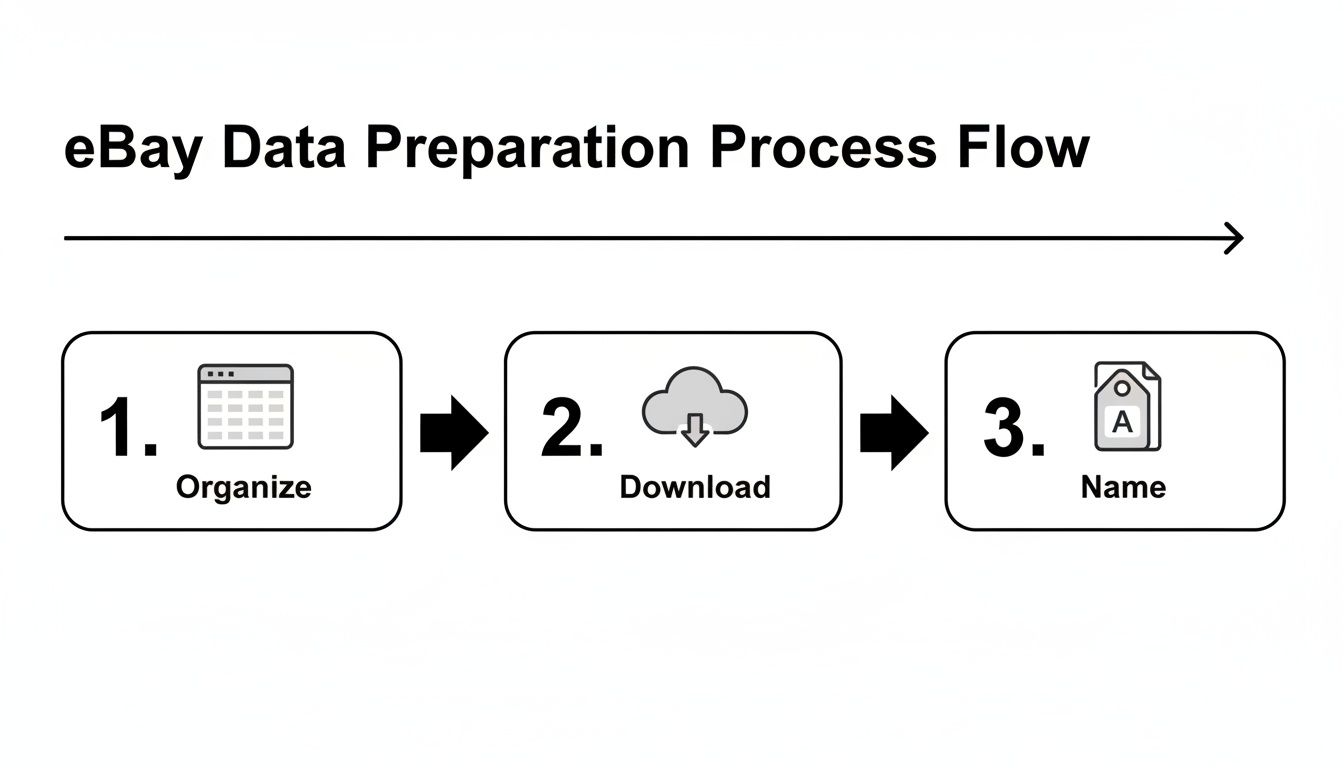
As you can see, a successful listing is built on a foundation of organized data, which includes having your media downloaded and logically named before you even log into eBay.
Defining Your Product Attributes
Once you've found a variation-friendly category and clicked "Create variations," you'll land in the variations editor. This is your command center for defining the traits that make each of your products unique—what eBay calls attributes.
eBay gives you a list of standard attributes like 'Color' and 'Size,' but the real power is in creating your own. Selling phone cases? Your attributes would probably be 'Color' and 'Model'.
You can add up to five attributes, and each of those can have up to 60 different options. While this means you could technically create a listing with up to 250 unique variations, that’s almost never a good idea. Just stick to the attributes that buyers actually use to make a decision.
Here's how you'd set it up:
- Choose an Attribute: Select 'Color' from the dropdown menu.
- Add Your Options: Start typing in your color names—'Red,' 'Blue,' 'Black'—and add them one by one.
- Repeat for Other Attributes: Click to add another attribute, maybe 'Size,' and then add its options like 'Small,' 'Medium,' and 'Large'.
As you do this, you'll see eBay build a combinations table below in real-time. It will automatically create a row for every single possible pairing: Red/Small, Red/Medium, Red/Large, Blue/Small, and so on.
Managing the Variation Combinations
Now you're looking at a table with every possible version of your product. Your next job is to trim this list down to reality. It's rare to stock every single combination, so you need to tell eBay which ones you don't actually sell.
Let's say you don't offer the 'Red' shirt in a 'Large' size. You'd simply find that row (Red/Large) and uncheck the box next to it. This removes it from the public listing so a customer can't accidentally order something you don't have. This is a non-negotiable step for keeping your inventory accurate and avoiding the headache of canceled orders.
Think of the variations table as your final inventory check. Deleting non-existent combinations here is your last line of defense against overselling and disappointing a customer. It directly impacts your seller metrics.
After you've pruned the list down to only the products you actually have in stock, it’s time to fill in the specific details for each one. That spreadsheet you prepared earlier is about to become your best friend.
Populating Price, Quantity, and SKU
This is the part of the process that can be a real grind without good preparation. For each variation, you'll see columns for Price, Quantity, and SKU. You can either type this information in one-by-one or use eBay’s bulk editing tools to save a ton of time.
If many of your variations have the same price or you have the same quantity for most, look for the "Edit" dropdown at the top of the column. You can apply a single value to all selected variations at once, then just go back and tweak the few that are different.
- SKU: This is where you copy and paste the unique SKU for each variation from your spreadsheet. It's absolutely essential for accurate tracking, especially if you use any third-party inventory software.
- Quantity: Input the exact number you have in stock for that specific variation. Getting this right is key to preventing overselling.
- Price: Enter the price for each product. This is how you can charge a bit more for premium options, like an XXL size or a special limited-edition color.
Seriously, take your time here. A single typo in a price or quantity field can cause a major problem, from losing money to getting a defect on your account. Always double-check your entries against your spreadsheet before you move on. Once these fields are populated and verified, you’re ready for the next critical phase: assigning photos to each variant.
Bringing Your Variations to Life with Photos and Prices
Alright, you've built the skeleton of your variation listing. Now it's time to add the two things that matter most to a buyer: what the product looks like and what it costs. This is where your eBay listing with variations stops being a data table and starts feeling like a real, interactive storefront.
Getting this part right is critical. When a customer clicks "Red," they need to see the red shirt instantly. This is your chance to connect the visual proof to their choice, eliminating guesswork and building trust. It's also how you'll handle your pricing strategy, maybe charging a bit more for that premium color or larger size without having to create a dozen separate listings.
Linking Images to Attributes
eBay's interface is pretty good about letting you connect your photos to the right variations, but you have to be precise. Once you're in the variations section of your listing, you'll see an area dedicated to managing the photos for the attributes you just created.
Your goal is simple: tell eBay which photo goes with which option. For instance, you want to say, "When a buyer picks the 'Blue' color, show them this picture of the blue shirt." You aren't assigning a photo to every single SKU (like Blue/Small, Blue/Medium). Instead, you link the image to the core visual attribute—in this case, Color.
Here’s how it usually plays out:
- First, you'll pick the attribute you want to add photos for from a dropdown menu (e.g., 'Color').
- eBay then shows you all the values you created for it, like 'Red,' 'Blue,' and 'Green.'
- You just click on a value, say 'Red,' and then upload or select the photo of the red product from your library.
You’ll just repeat that simple process for every color or any other attribute that needs its own image. If you followed the advice on naming your files logically (like TShirt-Red.jpg), this becomes a super-fast matching game. A few clicks, and your listing is now visually responsive.
I see so many sellers make the mistake of just uploading one generic photo for the whole listing. Don't do it. Buyers expect to see the image change when they select a different color. If it doesn't, you create confusion and doubt, and that absolutely kills conversions.
Setting Dynamic Prices and Quantities for Each Variation
Let's be real—not all your variations are created equal. An XXL shirt costs you more to make than a Small. A limited-edition color might be worth more. Your eBay listing with variations needs to reflect that, and the variations grid is where you make it happen.
Back in that table where you entered your SKUs, you'll see columns for 'Price' and 'Quantity.' This is your command center. You can bulk-edit to set a baseline price for most items, but the real power comes from tweaking the price for individual SKUs.
For example, you could set all your t-shirts from Small to XL at $19.99. But for the XXL and XXXL sizes, you can just click into their specific rows and change the price to $21.99. That kind of flexibility is one of the biggest financial advantages of using variation listings.
Fine-Tuning for Profitability
This granular control is everything for protecting your profit margins. Without it, you'd have to price every item based on your most expensive variant, which could make your standard sizes look overpriced. Even worse, you could underprice your premium items and lose money on every sale.
This detailed management extends right to your inventory. Be just as meticulous with the 'Quantity' column. Every SKU's stock level needs to be dead-on. If you get a new box of just 'Blue/Medium' shirts, you update the quantity in that one specific row.
Here are a few real-world scenarios where this control is a game-changer:
- Clearing Out Old Stock: Got a slow-moving color? You can easily put just that one variation on sale by dropping its price, leaving your bestsellers untouched.
- Upcharging for Premium Materials: If you offer a product in both standard cotton and a more expensive organic cotton, you can easily price the organic version higher.
- Tiered Sizing Costs: This is the classic apparel example. Larger sizes use more fabric, so you can build that extra cost directly into their price.
Once you’ve assigned every photo and set the right price and quantity for every single variation, take a moment to double-check everything. Make sure the red shirt shows up when you select "Red" and that your pricing is exactly where you want it. Mastering this step is how you prevent the headaches that lead to frustrated buyers, cancelled orders, and negative feedback down the line.
How to Get Your Variation Listing to Rank on eBay
Getting your eBay listing with variations live is one thing, but getting it seen is a whole different ballgame. Now you've got to play nice with eBay's search algorithm, Cassini. The goal isn't to guess what works; it's about making your listing so relevant and compelling that the algorithm has to show it to buyers.
Here’s the secret sauce of a variation listing: it pulls all your sales into one place. Every time someone buys a small blue shirt or a large red one, it adds to the same sales history. This consolidated sales velocity is your biggest weapon. You'll blow past competitors who have their sales diluted across dozens of separate listings for each size and color.
Build a "Master Title" That Works Harder
Your listing title is your single most important SEO tool on eBay. When you're selling variations, you can't just slap a generic title on it and hope for the best. You need to craft a "master title" that strategically includes keywords for your most popular or profitable variations.
Step back and think like a customer. If you sell a t-shirt in five colors but you know that black and white make up 80% of your sales, those are the keywords that need to be in your title.
For instance, a beginner might write a title like this:
- "Men's Graphic Crewneck T-Shirt S-XXL"
That's okay, but an expert would write this:
- "Men's Graphic T-Shirt Black White Cotton Crewneck Tee S-XXL"
See the difference? The second title directly targets the searches that bring in the most money. It grabs the attention of the most qualified buyers right away, which is a surefire way to boost your click-through rate from the get-go.
Think of your title as a mini search engine for your own product. By including your top variant keywords, you're essentially pre-qualifying your listing for the searches that matter most.
Write a Description That Sells Every Single Option
The title earns the click, but it's the description that seals the deal. For a variation listing, your description has a dual role: it needs to clearly explain every option available while also being packed with valuable long-tail keywords. Don't just list the specs; paint a picture that helps the buyer see themselves with the perfect product.
Break everything down so it's impossible to get confused. Use headings, bullet points, and bold text to make it easy to scan.
- Color Palette: Get descriptive. Instead of just "blue," is it a "Deep Navy Blue" or a vibrant "Royal Blue"?
- Size & Fit Guide: A simple chart with measurements is a game-changer. It helps buyers choose the right size with confidence and drastically cuts down on returns.
- Materials & Care: Be upfront about the fabric and how to care for it. Answering common questions before they're asked builds trust.
When you write this kind of detailed copy, you naturally start using powerful long-tail keywords that single-item listings can't effectively target. Phrases like "soft cotton graphic tee for men" or "lightweight summer t-shirt in black" will pull in traffic from buyers who know exactly what they want. For a deeper look at these methods, our full guide covers more advanced strategies for eBay listing optimization.
Use Volume Pricing to Boost Your Sales Velocity
One of the most powerful—and most overlooked—features for an eBay listing with variations is volume pricing. When a customer can see all your colors and sizes on one page, the temptation to buy more than one is huge. Volume pricing gives them the perfect excuse to do just that.
You can set up these tiered discounts right in the listing editor:
- Buy 2, get 10% off
- Buy 3, get 15% off
- Buy 4 or more, get 20% off
This is an absolute goldmine for items like clothing, phone cases, or craft supplies, where people often want a few different styles. Not only does it increase your average order value, but it dramatically boosts your sales velocity. More sales on a single listing in a short time sends a massive positive signal to Cassini, pushing you higher in the search results. It’s a beautiful, self-reinforcing cycle.
Answering Your Top Questions About eBay Variation Listings
Even the most seasoned sellers run into a few snags when creating variation listings. It's just part of the game. You'll go to set one up, and suddenly a critical setting is missing, or eBay won't let you update a listing that's already live. It happens.
This section is all about tackling those real-world problems. I'll give you the straight-up, practical answers to get you past the roadblock and back to selling. Think of this as your personal troubleshooting guide for the most common issues that pop up.
Why Can't I Find the Variations Option?
This is probably the most common "uh-oh" moment for sellers new to variations. You're ready to list, but the "Create variations" button has vanished. Don't panic—the fix is almost always simple.
The variations feature is only available for fixed-price listings, and only in certain categories. If you've chosen the "Auction" format, that button simply won't be there. Your first check should always be to make sure your listing is set to "Buy It Now."
Beyond that, some categories just don't support variations. It makes sense when you think about it.
- Supported: You'll almost always find it in categories like 'Clothing, Shoes & Accessories,' 'Home & Garden,' or 'Electronics.' These are products that naturally come in different sizes, colors, or specs.
- Not Supported: Categories for one-of-a-kind items like 'Books,' 'DVDs & Movies,' or many 'Collectibles' subcategories usually don't have the option.
If you're confident your listing is fixed-price, try picking a different—but still relevant—category. Sometimes a slight adjustment is all it takes for the variations option to pop right up.
Can I Add a New Variation to a Listing That's Already Live?
Yes, but with some big strings attached. eBay lets you add a new option to a variation that already exists. For example, if you already sell a shirt in 'Red' and 'Blue,' you can absolutely add 'Green' to the mix, even if the listing has sales.
Here's the catch: you cannot add a brand-new attribute. If your listing only had 'Color' as an attribute, you can't go back and add 'Size' once an item has been sold. You also can't delete a variation option that has a sales history. For those kinds of major changes, your only real move is to end the listing and start over with a fresh one.
My Advice: Always try to think ahead. Plan out all the potential variations from the very beginning. It's a whole lot easier to add a new color down the road than it is to restructure a successful listing that's already making you money.
How Should I Handle Different Shipping Costs for Different Variations?
This is a classic problem. Let's say you're selling t-shirts. The XXL size is noticeably heavier and costs more to ship than the XS. Unfortunately, eBay’s system only lets you set a single shipping rule for the entire listing. You can't charge more for one specific variation.
So what do you do? You have a couple of solid strategies here:
- Find the Average Cost: Figure out a blended shipping rate that covers your costs across the board. You might lose a little on the heavy items but make it back on the lighter ones.
- Price It Into the Product: This is often the cleaner approach. Offer free shipping (or a flat rate for the heaviest item) and just build that potential extra cost directly into the price of the larger, heavier variations.
Getting your pricing right is everything. To make sure you're profitable, it's worth taking a deep dive into all the costs to sell on eBay, as this will help you fine-tune both your item prices and shipping strategy.
What's the Best Way to Keep My Inventory Straight?
Trying to manually track stock for a listing with dozens or even hundreds of SKUs is a fast track to overselling and damaging your seller rating. If you're running a serious operation, investing in third-party inventory management software is a no-brainer. These tools automatically sync your stock levels across eBay and any other platforms you sell on.
If you're not quite at that scale yet, your SKUs are your most powerful tool. Assign a unique SKU to every single variation without exception and keep everything organized in a master spreadsheet. From there, you can use eBay's bulk editing tools to periodically upload your sheet and update all your quantities at once. This simple process can save you from stockouts and keep your business running smoothly.
Tired of manually saving every single product photo for your listings? AliSave Pro lets you download all product and variant images from an AliExpress page in one click. It's a simple way to streamline your workflow, save a ton of time, and build more professional-looking listings. Install AliSave Pro for free from the Chrome Web Store and see how much faster you can get your products listed.