
For anyone running an e-commerce store, figuring out how to download images from a supplier’s website is a fundamental skill. It really comes down to two choices: you can save every single file one by one, which is a massive time sink, or you can use a specialized tool to grab them all at once. The best approach really just depends on whether you need one specific photo or a whole product gallery.
Why High-Quality Product Images Are Non-Negotiable
In e-commerce, your product images do the heavy lifting. They're not just there to look nice; they're your most powerful sales tool. Since customers can't physically touch or inspect your products, they have to rely on what they see to decide whether to buy. This is where the quality of your images can either make or break your store’s success.
Think about it from a shopper's perspective. Low-resolution, blurry, or inconsistent photos immediately kill trust and make your brand feel amateur. Would you pull out your credit card on a website with pixelated product shots? I know I wouldn't. Crisp, clear visuals send a strong signal of credibility and professionalism.
The Real-World Challenges of Sourcing Images
Getting your hands on these crucial images brings its own set of headaches, especially if you're dropshipping or managing a large inventory. The old "right-click and save" method for every single product photo—including all the different colors and style variations—is painfully slow. It’s a workflow that just doesn't work when you're trying to grow.
Beyond the sheer time it takes, you'll inevitably run into other frustrating roadblocks:
- Low-Resolution Files: Often, the image you can easily save from a product page is just a compressed thumbnail, not the high-resolution version you need for things like a zoom feature.
- Pesky Watermarks: Many supplier photos are slapped with watermarks that look unprofessional and distracting on your own storefront.
- Complex Galleries: Modern websites love using slick JavaScript galleries or lazy-loading, which hides the actual image source and makes a simple "Save Image As" completely useless.
These hurdles create a major bottleneck, slowing down new product launches and marketing efforts. Every minute you spend wrestling with image downloads is a minute you're not spending on tasks that actually grow your business. If you do end up with fuzzy images, a tool for AI image upscale for flawless visuals can be a lifesaver.
The real challenge isn't just downloading a single image. It's building a fast, repeatable process that consistently gives you high-quality, organized, and ready-to-use visuals for your own e-commerce platform.
This guide is here to help you cut through that complexity. We’ll walk through the manual methods for when you just need to grab one specific shot, as well as the powerful automated tools that can download entire collections in a click. Understanding both will give you the flexibility to pick the right strategy for any situation. For more tips on making your store look great, check out our guide on the best ecommerce website design. By the time you're done here, you'll have a clear plan for sourcing the visuals you need, quickly and efficiently.
Mastering Manual Image Downloads for Precision
While automation is great for bulk jobs, sometimes you need a more surgical approach. When you're after one specific, high-quality shot—like a hero image for your homepage or a unique product angle—manual methods give you total control. This is where we go beyond the simple right-click and learn how to pull images directly from a website's code.
Don't let the "code" part scare you. It's not as complex as it sounds. Every modern browser, from Chrome to Firefox, has a built-in feature called "Inspect" or "Developer Tools." Think of it as an x-ray for any webpage, letting you see the underlying structure and pinpoint exactly where an image file is located. Learning this one skill lets you grab visuals that are otherwise locked down or hard to save.
This diagram lays out the two main paths you can take: the focused, manual inspection route versus the broader, automated tool approach.
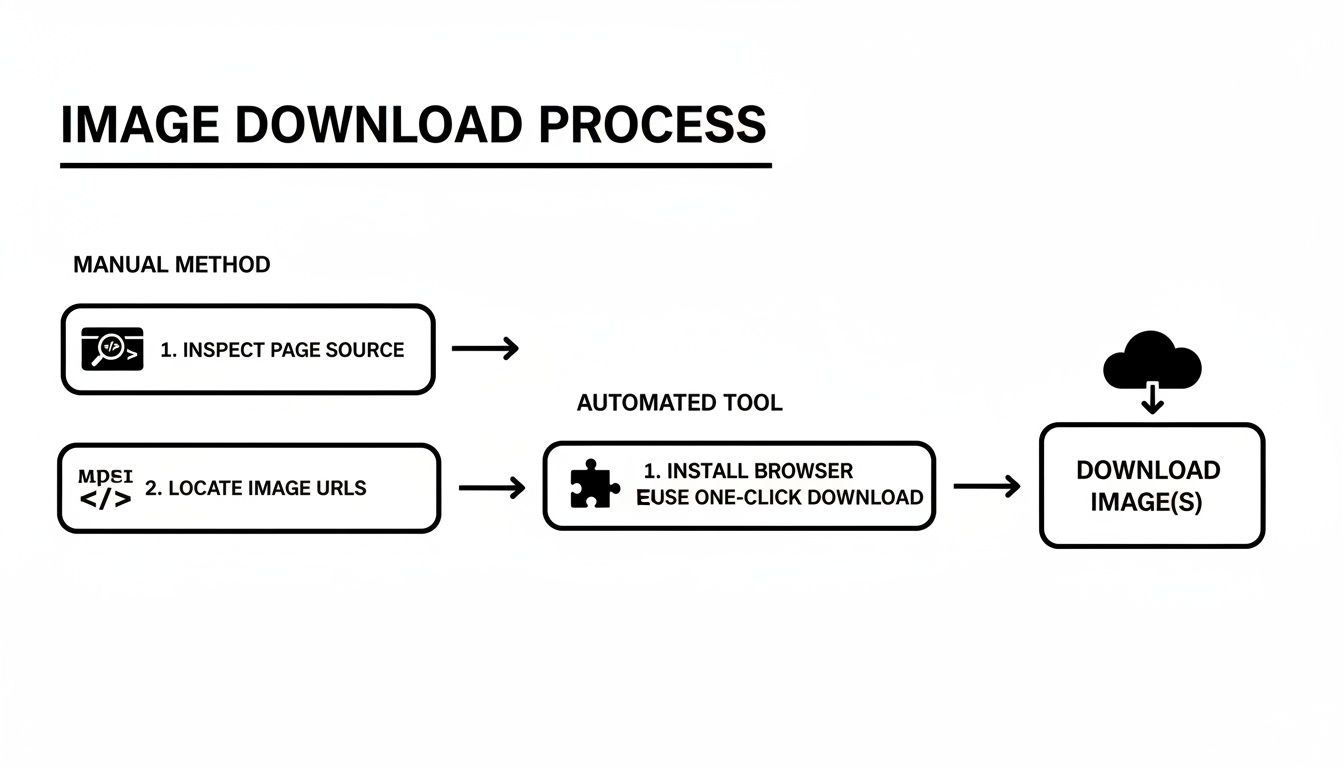
As you can see, manual methods require a more hands-on dive into the site’s code, whereas automated tools simplify everything into a single action.
Using Inspect Element to Find Image URLs
Let’s walk through a common scenario. You’re on a product page, and right-clicking the main image either doesn't give you a "Save Image As…" option or only saves a tiny, low-quality thumbnail. This is your cue to bring out the Inspector.
Just right-click directly on the image you want and choose Inspect from the menu. A new panel will pop up showing you the website's HTML, and it will conveniently highlight the exact line of code for that image. You're looking for an <img> tag.
Within that tag, you'll spot an attribute called src (which is short for "source"). The URL right next to src is the direct link to the image file itself.
- Most of the time, you can just double-click this URL to select it.
- Copy it, then paste that URL into a new browser tab.
- The image will load all by itself. Now you can right-click and save it at its full, original resolution.
This technique completely bypasses any on-page scripts or overlays designed to block simple downloads. You're going straight to the source.
Dealing with Complex Website Structures
Of course, modern websites are rarely that simple. Developers use all sorts of tricks that can make finding an image source a bit of a scavenger hunt, but the Inspector tool is equipped to handle them.
Navigating Lazy Loading
To make pages load faster, many sites use a technique called lazy loading. This means images only actually load as you scroll down the page. If you inspect an image that hasn't loaded yet, the src attribute might be empty or point to a blurry placeholder.
In these cases, look for a different attribute like data-src or data-srcset instead of the standard src. This is where the real image URL is hiding. You can copy the URL from data-src just like you would from a regular src attribute.
Don't get discouraged if the image source isn't immediately obvious. The developer tools show you everything the browser sees. A little bit of digging in the HTML right around the highlighted element will almost always reveal the direct link you need.
Finding Background Images
What if the image isn't an <img> element at all? Sometimes, it's a background image applied with CSS. If you right-click and inspect an area with a background visual, you won't find an <img> tag.
Instead, you need to check the CSS styles tied to that element. Look for a "Styles" or "Computed" tab in your developer tools and scan through the properties for background-image: url(...). The link inside those parentheses is your target.
- Copy the URL: Select and copy the entire URL from inside the
url()function. - Open in a new tab: Paste it into your browser's address bar to view and save the image.
- Check for different sizes: Be aware that some sites use different background images for different screen sizes. Make sure you're grabbing the largest one available for the best quality.
These manual techniques take a little more effort, but they're incredibly powerful for precision work. That said, for certain platforms, specialized tools like an Instagram Photo Downloader can save you the trouble of digging through code. Still, knowing how to do a manual inspection is an invaluable skill for any e-commerce seller needing to grab that one perfect shot.
The One-Click Workflow for Bulk Image Downloads
Manual methods are great when you need to grab just one or two specific images. But let's be real—when you're trying to source visuals for dozens of products, that approach becomes a massive time sink. This is exactly where a good browser extension completely changes the game.
For anyone running a dropshipping or e-commerce store, time is everything. Spending hours of your day right-clicking and saving every single product variant photo simply isn’t a smart way to run a business. A dedicated browser extension turns this multi-hour chore into a task that takes just a few minutes. They're built to navigate the complexities of sites like AliExpress, grabbing everything you need in one clean sweep.
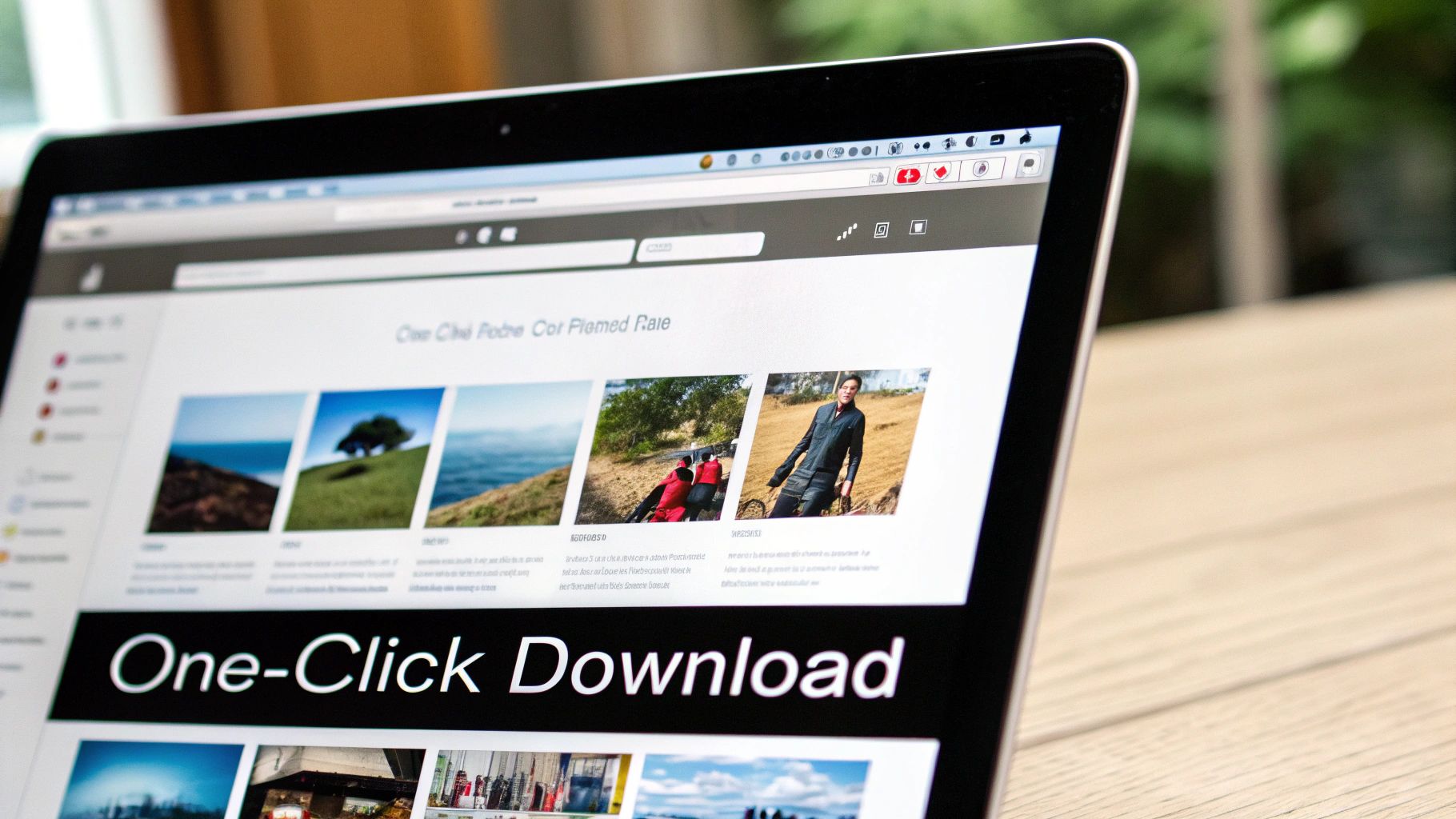
The whole process is designed to be ridiculously simple. You install the extension, head over to a product page on your supplier's site, and click a button. The tool does the rest, automatically downloading all the images into a tidy ZIP file.
Why Extensions Are a Game Changer for E-Commerce
The single biggest win here is the sheer amount of time you get back. What used to be a mind-numbing manual task becomes an automated process you can kick off and forget about. That efficiency boost directly impacts how fast you can move.
Think about it: A recent study showed that dropshippers using one-click Chrome extensions increased their product listing speed by an incredible 75%. That freed them up to launch three times as many products each month. On the other hand, sellers with poor-quality visuals saw their bounce rates jump by 25%.
A tool like AliSave Pro is a perfect example. It's free, respects your privacy, and is tailor-made for sellers sourcing from AliExpress to use on platforms like Shopify or WooCommerce. It’s exactly what you need to stop wasting time.
This speed isn't just about saving a few hours. It means you can test more products, refresh your store's inventory faster, and jump on market trends long before your competitors who are still stuck saving files one by one.
The goal of a good downloader extension isn't just to save images; it's to eliminate a major operational bottleneck. It lets you shift your focus from tedious data entry to high-value activities like marketing, customer service, and product research.
On top of the main product photos, these tools are smart. They know how to find and grab all the different media you need for a truly compelling product page.
- Product Variant Images: Every color, size, and style option gets downloaded. This is non-negotiable for platforms like Shopify where customers expect to see exactly what they're buying.
- Customer Review Photos: Social proof sells. These extensions can often pull down user-submitted photos, giving you authentic, real-world content for your listings and ads.
- High-Resolution Files: The extension automatically hunts for the best quality version of each image, ensuring your store looks sharp and professional, especially for zoom features.
This all-in-one approach gives you a complete set of visual assets, ready to upload without worrying that you missed something. If you want to see it in action, our guide on how to download images and videos from AliExpress breaks it down step-by-step.
Manual Methods vs. Browser Extensions: A Quick Comparison
Deciding between manual downloads and an extension really comes down to what you're trying to accomplish. Here’s a quick side-by-side look to help you choose the right tool for the job.
| Feature | Manual Downloads (Right-Click & Inspect) | Browser Extensions (e.g., AliSave Pro) |
|---|---|---|
| Speed | Slow and repetitive; one image at a time. | Extremely fast; downloads all images in one click. |
| Volume | Best for 1-5 images. Impractical for bulk. | Ideal for dozens or hundreds of images per product. |
| Organization | No automatic organization. You have to rename and sort files manually. | Automatically zips and often renames files logically. |
| Quality | You get the quality displayed, which might not be the highest available. | Prioritizes the highest resolution versions available. |
| Image Types | Often misses background images, variants, or review photos. | Grabs everything: main, variants, descriptions, and reviews. |
| Best For | Grabbing a single, specific image for a blog post or mood board. | E-commerce owners, dropshippers, and marketers sourcing product visuals. |
Ultimately, while manual methods offer precision, extensions provide the speed and efficiency needed to run an e-commerce business at scale.
Features That Solve Common Headaches
The best downloader extensions are built by people who understand the daily grind of an online seller. They pack in features that solve the little frustrations that can derail your workflow.
One of the biggest headaches is dealing with watermarks. Supplier images are often plastered with logos or text that looks unprofessional on your own storefront. A good extension will actively look for non-watermarked versions, saving you a ton of time in Photoshop.
Another huge time-saver is automatic organization. Instead of a chaotic downloads folder filled with files named IMG_5829.jpg, these tools bundle everything into a single ZIP file. Even better, the images inside are often renamed with logical identifiers (like the product SKU and color), so you can easily find what you need when you're building out your product pages. It’s a small detail that prevents a major mess down the line.
Organizing Downloaded Images for Your Store
That feeling of successfully grabbing a whole batch of product images is great, but the work's not over. If your downloads folder is a jumble of files named 6a00d834...970b-800wi, you've just created a new headache for yourself. Getting your digital assets organized right from the start is one of the smartest things you can do for your store's workflow.
This goes way beyond just keeping your computer tidy. It's about building a system. A well-organized asset library will save you an unbelievable amount of time when you're building product pages, whipping up ads, or just trying to update your inventory. You'll be able to find the exact image you need in seconds.
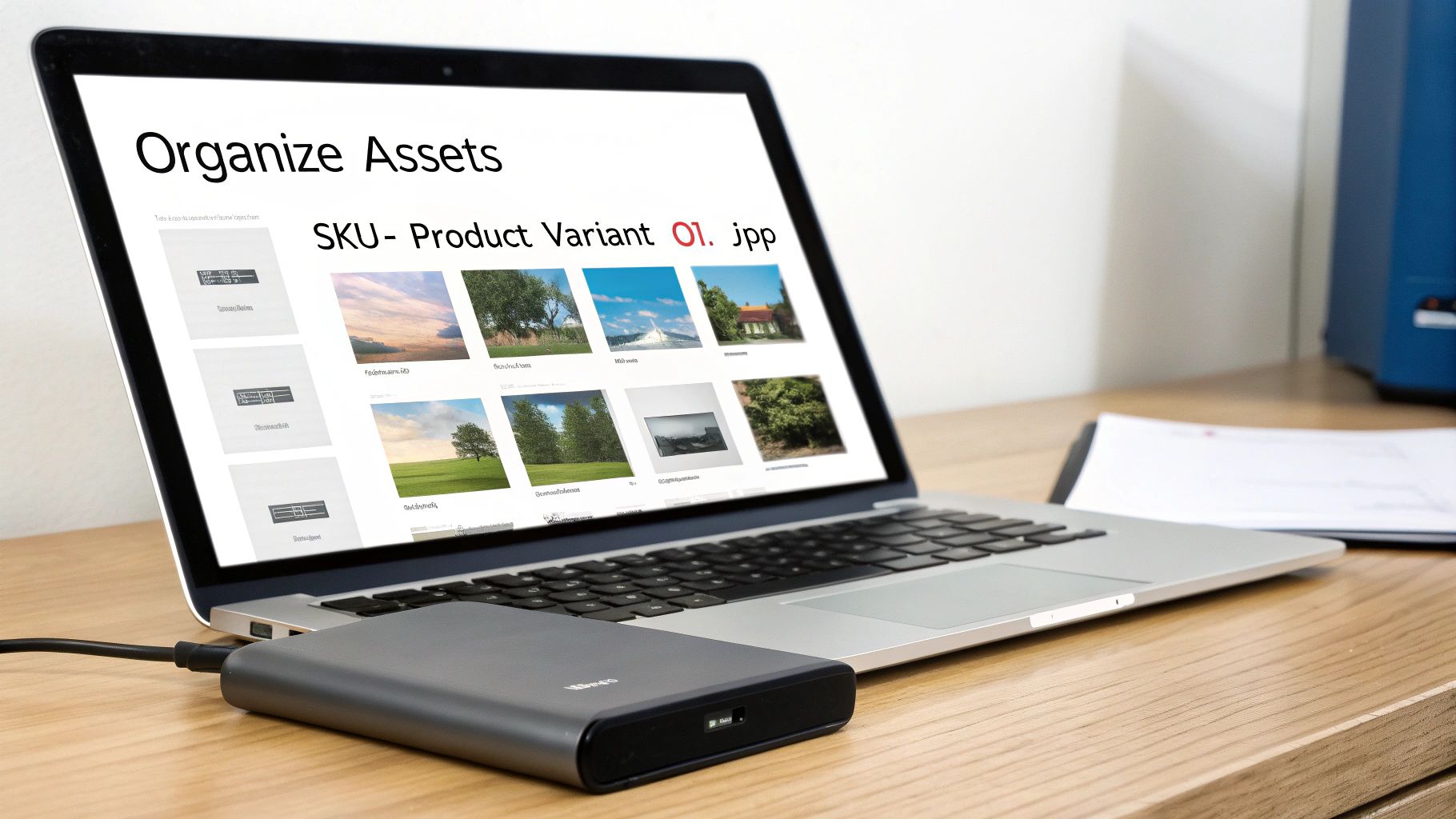
Why a Consistent File Naming System Is a Game-Changer
If you take only one piece of advice from this section, let it be this: establish a consistent file naming convention. Random file names are a nightmare for managing inventory and can actually hurt your SEO. Search engines like Google use the file name as a major clue to figure out what an image is all about.
A descriptive name gives your images context, helping them show up in image searches and driving more organic traffic straight to your store. For platforms like Shopify and WooCommerce, logical names also make wrangling product variants a thousand times easier.
Try to adopt a clear, scalable structure that makes sense to you. Here's a popular one:
SKU-ProductName-Variant-Number.jpg
So, a real-world example would be TS001-GravityTee-Blue-01.jpg. At a glance, you know the product's SKU, its name, the color, and that it's the first photo in the series. Simple and effective.
Building a Folder Structure That Grows With You
Your naming system becomes even more powerful when you pair it with a logical folder structure. Don't just dump everything into one giant "Products" folder. Instead, create a hierarchy that actually mirrors your store's categories or product lines.
A simple but incredibly effective structure looks something like this:
- Apparel
- T-Shirts
- TS001-GravityTee
- TS002-AstroTee
- Hoodies
- HD001-RocketHoodie
- T-Shirts
This approach stops things from getting cluttered and makes finding all the assets for a specific product a breeze, whether it's just you working or you have a whole team.
A predictable organization system is the foundation of an efficient e-commerce operation. It removes guesswork, reduces errors, and makes handing off tasks to a virtual assistant or team member a seamless process.
Handling ZIP Files and Batch Renaming
Tools like AliSave Pro are fantastic because they often deliver all your images neatly packed in a ZIP file. The first thing you'll do is unzip the contents into your designated product folder. Once everything is extracted, you’ll probably have a bunch of files that need to be renamed to fit your new convention.
Don't even think about doing this manually. It's a soul-crushing task. Use a batch renaming tool to get it done in seconds.
- On Windows: The built-in File Explorer is surprisingly useful. Just select all the files you want to rename, press F2, type a new base name (like
TS001-GravityTee-Blue-), and hit Enter. Windows will automatically add(1),(2), etc. to the end of each file. - On macOS: Finder has a more robust "Rename Items" feature. Right-click your selected files, and you'll get options to add text, replace text, or apply a clean format with a sequential number.
This simple workflow—download, unzip, batch rename—transforms a chaotic mess of files into a perfectly organized library of assets, ready for you to upload. If you’re getting deep into organizing your products on Shopify, you might also find our guide on using tags on Shopify helpful for keeping everything sorted.
Navigating Image Copyright for E-Commerce
Figuring out how to download images from a website is the easy part. The real challenge—and what keeps your business safe—is knowing when you're actually allowed to use them.
Using photos you didn't take yourself is governed by some serious rules. Ignoring them isn't just bad form; it can land you in a world of legal and financial trouble. This isn't some abstract legal theory; it’s about making smart, practical decisions for your brand.
The second someone snaps a picture or creates a graphic, it's automatically protected by copyright. That means you can't just grab a cool photo from another brand’s site or a Google search and slap it on your product page. That's a direct violation of the creator's rights.
For e-commerce sellers, especially if you’re dropshipping, the situation has a bit more nuance. When you’re working with a supplier from a platform like AliExpress, you're generally given permission—either explicitly or just by the nature of the business—to use their product photos. Why? Because you're acting as their reseller, and they want you to sell their stuff.
The Rules of the Road for Supplier Photos
But that permission isn't a blank check. It’s a limited license that’s tied directly to selling that supplier's products. To keep your store professional and on the right side of the line, you need to operate within some common-sense guidelines.
Here’s what you absolutely need to keep in mind:
- Check the Supplier's Terms: Before you download a single pixel, poke around the supplier’s page for any terms of service or specific rules about image use. Some are stricter than others.
- Stick to Product Promotion: Use the photos for one thing and one thing only: to market and sell that exact product from that specific supplier. Using their photo of a blue gadget to sell a similar-looking blue gadget from another factory is a huge no-no.
- Watch Out for Third-Party Logos: Be incredibly careful with images that have other brands visible. If a model in a t-shirt photo is wearing a hat with the Nike swoosh, using that image could imply an endorsement you definitely don't have. It's always safer to edit those logos out or just pick another picture.
The bottom line is simple: your permission to use a supplier's images is directly linked to your role as their reseller. The moment you repurpose those photos for a different product, your own site-wide branding, or anything else, you're crossing into dangerous territory.
Understanding this distinction is what separates a legitimate e-commerce business from one that’s committing copyright infringement.
Why Original Photography Is the Ultimate Goal
Using supplier photos is a fantastic and often necessary way to get your store off the ground. Think of it as a launch strategy, not a forever plan. The moment you have the resources, investing in your own product photography is one of the most powerful moves you can make.
Why? Because original photos give you something priceless: a unique brand identity.
Every other person dropshipping that same item is using the exact same set of stock photos from the supplier. Your store will look like a carbon copy of dozens, maybe even hundreds, of others. Custom photography breaks you out of that sea of sameness.
- Differentiate Your Brand: Your own photos make your products look special and give your store a cohesive, professional vibe that builds instant credibility.
- Gain Complete Control: When you own the images, they’re yours. Use them on your site, in your ads, on social media—anywhere you want, without worrying about someone else's rules.
- Build Real Trust: High-quality, unique images signal to customers that you're a serious business that has invested in its own brand. It screams "legit," not "another generic dropshipping store."
So, while downloading supplier images is a crucial skill for getting products listed quickly, the long-term path to building a defensible and memorable brand is paved with your own visual assets. It's an investment that pays for itself over and over again.
Running Into Download Snags? Here’s How to Fix Them
Even the slickest tools can hit a bump in the road. It happens. You’re ready to grab a batch of product photos, and suddenly, nothing works as it should. The good news is that most of these headaches have simple fixes that will get you back on track in minutes.
One of the most common emails I get is about a download button that has suddenly vanished from a product page. Nine times out of ten, the culprit is your browser's cache. It gets clogged with old data and starts interfering with how extensions load. Before you do anything else, pop into your browser's settings and clear the cache and cookies. It’s the digital equivalent of turning it off and on again, and it works wonders.
If that doesn't do the trick, another extension is likely causing a turf war. Ad blockers, other downloaders, or privacy tools can sometimes conflict with each other. The easiest way to diagnose this is to disable your other extensions one by one, refreshing the product page each time. Once the button pops back up, you’ve found your culprit.
What to Do When You Get the Wrong File Type
Ever download a perfect product shot only to discover it’s a .webp file? It’s a newer format that’s great for website speed but a real pain when your e-commerce platform or photo editor won't accept it. This isn't a bug, just an inconvenient reality of the modern web.
Don't worry, you don't need to fire up Photoshop. A quick search for a "WebP to JPG converter" will give you plenty of free online tools. Just drag and drop your file, hit convert, and you’ll have a universally friendly .jpg in seconds.
Nabbing Images from Tricky Galleries
Sometimes, the problem isn’t a glitch but a clever website design. Many sites use dynamic galleries, carousels, or "infinite scroll" where images only load as you click or scroll down the page. If you hit the download button too soon, the tool will only see the few images that have loaded so far.
The trick is to "wake up" the entire page first. Before you try to download, take a moment to interact with everything. Scroll all the way to the bottom. Click on every single color swatch and style variant. Open the image gallery and click through each photo.
This forces the website to load every single image asset into your browser. Once they're all visible on the page, your download tool can see them too, ensuring you get a complete set—from the main product shots to the detailed close-ups. It’s a simple step that makes a huge difference.
Got Questions? We’ve Got Answers.
We get it. When you're building an e-commerce store, the nitty-gritty of handling images can bring up a lot of questions. Let's tackle some of the most common ones we hear from sellers.
What Image Formats Should I Use for My Store?
This is all about finding the sweet spot between image quality and page speed. You need both.
For your product photos, JPEG (.jpg) is almost always the right call. It’s the workhorse of the web for a reason—it compresses images effectively, keeping your file sizes down so pages load fast. Nobody's going to wait around for a slow-loading product page.
But for things like your logo, icons, or any graphic that needs a transparent background, you’ll want to go with PNG (.png). The files might be a bit larger, but PNGs keep those sharp lines and transparent elements looking crisp and professional.
Is It Actually Okay to Use My Supplier's Product Photos?
Yes, usually—but you have to know the rules. If you're an authorized reseller or dropshipper for a supplier from a site like AliExpress, you generally have an implied green light to use their product photos for one purpose: selling their products.
Think of it this way: the permission is tied directly to the product. You can't just grab a cool lifestyle shot from a supplier and use it on your homepage banner or to sell a totally different item. That’s a fast track to copyright trouble. For building a real brand, nothing beats your own unique photography.
How Do I Make Sure the Images I Download Look Good?
The single most important rule is to always hunt down the highest-resolution version you can find. Don't just right-click and save the thumbnail you see on the page.
Using your browser's "Inspect" tool or a well-built extension will let you dig in and grab the original, full-size files. Also, be on the lookout for supplier watermarks—they're a dead giveaway and can make your store look amateurish. A solid downloading tool can often find unwatermarked versions for you, which is a massive time-saver.
Speaking of efficiency, this is where you can gain a real edge. Some reports show that US dropshippers have cut their ad creative prep time from hours down to just minutes by using the right tools. You can read more about how these streamlined workflows are changing the game at AliPrice.com.
Ready to stop wasting time and start building your product catalog faster? AliSave Pro is the free, one-click Chrome extension designed specifically for e-commerce sellers. Download all product images, variants, and videos from AliExpress in an instant. Get AliSave Pro for free and streamline your workflow today!