

Absolutely. You can search by image on AliExpress, and honestly, it’s one of the most powerful features on the platform. On both the mobile app and the desktop site, you'll find a little camera icon right in the search bar. This lets you upload a picture to find the exact product or something incredibly close to it, saving you the headache of guessing keywords.
Why Image Search Is Your Secret Weapon on AliExpress
Ever been scrolling through Instagram, seen a killer gadget or a unique piece of home decor, and immediately thought, "I need that"? That's where visual search on AliExpress completely changes the game. It’s less of a feature and more of a superpower for shoppers.
Forget trying to describe something in words. Is it a "mid-century modern-inspired, burnt orange, velvet accent chair"? Just use a picture. This simple action cuts through vague product titles and clunky translations, turning a photo into a direct link to what you want to buy.
From Inspiration to Purchase in a Flash
The practical uses are endless. Let’s say you see an influencer wearing a dress you love, but there's no brand tagged. A quick screenshot is all you need. Upload it to AliExpress, and you'll likely find that exact item or a dozen nearly identical dupes in seconds.
For dropshippers, this tool is indispensable. See a competitor's trending product? One photo can instantly reveal multiple suppliers, letting you source the same item for your own store without spending hours on manual searches.
Think of it as your personal shopping assistant for a massive global marketplace. It eliminates the guesswork and connects you directly to what you want, when you want it.
AliExpress’s image search sifts through its staggering database of over 111 million products using sophisticated image recognition. This technology slashes the time it takes to find something. A typical keyword search can easily take 20 minutes or more as you filter through junk results, but an image search gets you there in a fraction of the time.
To see how this works for fashion specifically, you can check out this guide to finding clothes by picture online, which covers the broader concept.
Ultimately, getting comfortable with the search by image on AliExpress function completely changes how you shop and source products. It makes the whole process faster, smarter, and way more intuitive.
How to Search by Image on the AliExpress Mobile App
Let's be honest, inspiration doesn't always strike when you're sitting at a computer. You might spot a cool gadget at a friend's place or see the perfect dress scrolling through Instagram. This is exactly where the AliExpress mobile app's image search becomes your secret weapon, turning your phone into a surprisingly powerful shopping tool.
The whole idea is to skip the guesswork. Instead of trying to find the right keywords to describe something—"blue floral asymmetrical midi skirt"?—you just let a picture do the talking. The app gives you two easy ways to do this: snapping a photo right then and there, or using a picture you already have saved.
Kicking Off Your First Image Search
Getting started is a breeze. Just open up the AliExpress app. See that search bar at the very top? Look to the right, and you'll find a little camera icon. That's what you're looking for. Tapping it will instantly open your phone's camera, ready to go.
So, let's say you're out and see a unique-looking backpack. You can just pull out your phone, tap the icon, and snap a quick photo. Right away, AliExpress will scan the image and show you a whole list of identical or strikingly similar backpacks from different sellers. It's that fast.
The other option is for when you've already saved a picture—like a screenshot from Pinterest or a product photo from a blog. Instead of using the live camera, you'll just select the "Photo" or "Album" option to pull up an image from your phone's gallery.
From my experience, the best search results always come from clear, well-lit photos that focus on just the product. Think of it as feeding the algorithm good data. The better the picture you give it, the more accurate it's going to be in finding what you want.
This simple "see, snap, find" workflow is what makes the feature so useful.
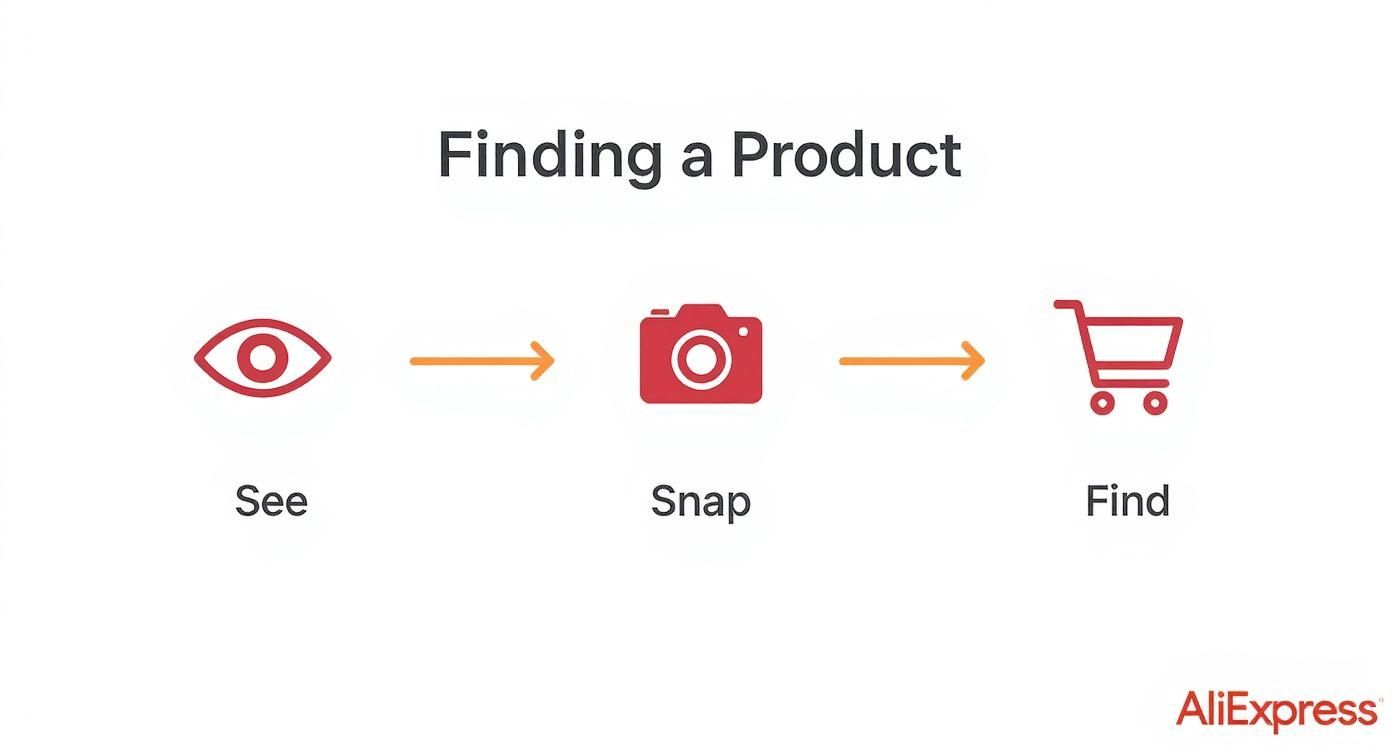
It really does streamline the process, taking you from a moment of inspiration directly to a page where you can buy the item.
Tips for Better Mobile Search Results
While the tech is pretty smart, it's not magic. The quality of your image makes a huge difference. A blurry, dark, or cluttered photo will just confuse the algorithm and spit back a bunch of random, irrelevant stuff.
To get the best possible matches, here are a few things I always do:
- Crop Out the Noise: Before you hit search, take a second to crop the image so only the product is showing. If you're trying to find a specific handbag, crop out the person carrying it and the busy street behind them.
- Good Lighting is Everything: Always try to take photos in a well-lit space. Natural daylight is your best friend because it shows true colors and details without creating weird shadows that can throw off the search.
- Focus on One Thing at a Time: Don't use photos with a bunch of different products in them. If you want to find a specific pair of sneakers from a full-outfit picture, crop it down so the sneakers are front and center.
- Use High-Quality Images: A crisp, clear image works wonders. If you're sourcing products, it's worth learning how to download high-quality images from AliExpress for your own research and marketing.
Making these small tweaks seriously boosts your odds of finding the exact item you're looking for, and you might even find it for a better price.
Using Image Search on the AliExpress Website
While the mobile app is fantastic for those "aha!" moments when you're out and about, a lot of us still prefer the big-screen real estate of a desktop for serious product sourcing. It’s just easier to manage multiple tabs, compare listings side-by-side, and keep your research organized. The good news is that the process to search by image on AliExpress is just as simple on their website.

The idea is exactly the same—you give AliExpress a picture, and its algorithm goes to work finding similar products. The only real difference is how you do it, since you'll be uploading files from your computer instead of snapping a photo on the fly.
Kicking Off Your Desktop Search
First things first, head over to the AliExpress homepage. You can't miss the big search bar at the top of the page. To the right of that bar, you'll see a small camera icon—that's your target.
Clicking that little camera opens a window asking you to "Upload an image to search." This is where the magic starts. Just find the image file on your computer—it could be a screenshot you took, a product photo you downloaded, or an inspiration picture you saved.
The site handles standard image files like JPEGs and PNGs without any fuss. Once you choose your file, AliExpress uploads it and, within seconds, serves up a page full of products it thinks are a match.
The real edge of using a desktop comes after this initial search. Being able to pop open a dozen promising listings in new tabs, use browser extensions to analyze sellers, and meticulously compare every detail is a huge plus for anyone doing deep product research.
Drilling Down to the Best Option
Finding a match is just step one. The real goal is finding the best listing from the best seller. This is where the website's filtering and sorting tools become your best friend.
Once your search results are up, you can start narrowing things down:
- Sort by "Orders": This is my go-to filter. Sorting by the highest number of orders immediately brings the most popular, time-tested products to the top. It's a great indicator of a reliable seller and a product people are happy with.
- Filter by Price: Got a budget in mind? Set a price range to instantly weed out anything that’s too cheap to be true or way too expensive.
- Filter by "Free Shipping": If you’re trying to keep costs predictable, checking this box ensures you only see items without any surprise shipping fees.
By layering these filters, you can cut through the noise and shrink a list of hundreds of possibilities down to a few top-tier candidates. From there, it's easy to open your top choices in new tabs and dig into the nitty-gritty details like seller ratings and customer review photos. This methodical process is what makes the desktop experience so powerful for sourcing.
AliExpress Image Search Method Comparison
Deciding between the app and the website often comes down to what you’re trying to accomplish. The app is built for speed and convenience, while the desktop offers more power for in-depth research.
Here’s a quick breakdown to help you choose the right tool for the job.
| Feature | Mobile App | Desktop Website |
|---|---|---|
| Best For | On-the-go discovery, quick price checks | In-depth product sourcing, comparing listings |
| Image Source | Live camera photo or phone gallery | Uploaded files (screenshots, downloads) |
| User Experience | Fast and streamlined for a single task | Robust, ideal for multi-tab research |
| Key Advantage | Instantly search for items you see in real life | Powerful filtering and side-by-side comparison |
Ultimately, both methods are incredibly useful. I find myself using the mobile app for initial discovery and then jumping over to my laptop to do the serious vetting before making a purchase or adding a product to my store.
Advanced Strategies for Pinpoint-Accurate Searches
https://www.youtube.com/embed/2voJCMNpsOk
Once you’ve got the hang of the basics, it’s time to level up your game. A successful search by image on AliExpress isn't just about uploading a photo and hoping for the best; it’s about feeding the algorithm the cleanest possible information to get back precisely what you're looking for.
Think of it like this: the quality of your source image is everything. A blurry, low-res, or cluttered photo is like mumbling a question in a noisy room. The algorithm can't easily tell the product apart from the background mess, which is why you end up with a page full of random, irrelevant junk. Always, always start with the highest-resolution image you can get your hands on.
If the photo is busy, a quick edit will make a night-and-day difference. The simplest and most powerful first step is to crop the image, so it only shows the item you want to find. For example, if you’re trying to find a cool-looking lamp from a picture of a fully decorated living room, crop out the couch, the rug, and everything else.
Isolate and Enhance Your Image
To take it a step further, isolating the product on a clean background is a total pro move. You don't need Photoshop for this. Plenty of free online tools can strip the background from an image in seconds, leaving your item floating on a simple white or transparent canvas.
This single action eliminates almost all confusion for the search algorithm. If you're stuck with a less-than-ideal image, consider running it through one of the many free photo enhancer tools to sharpen details and improve clarity. A little tweak to the brightness or contrast can seriously boost your search accuracy.
By prepping your image beforehand, you're essentially pointing the AI exactly where to look. This tiny bit of effort almost always pays off with better matches, helping you discover sellers you would've otherwise missed.
This kind of focused approach is a huge part of smart product sourcing. If you're running a dropshipping store, mastering these little tricks is non-negotiable for staying competitive. We dive deeper into this in our guide on product research for dropshipping.
Combine Image and Text for the Win
Sometimes, the best results come from mixing your methods. If you have a picture of an item but have no idea what it's called, a tool like Google Lens can be your best friend. Use it first to get a product name or at least a few solid keywords.
Now, you can perform a hybrid search on AliExpress. Start by uploading your clean, cropped image. Once the visual results load, use the search bar at the top to add those keywords you just discovered, like "geometric ceramic vase" or "minimalist desk organizer."
This two-step process—visual search filtered by text—narrows down the options to an incredibly precise set of listings. It’s my go-to tactic for tracking down niche products or telling the difference between two items that look almost identical.
Solving Common Image Search Problems
Even the best tools have their off days, and trying to search by image on AliExpress is no exception. Nothing kills the thrill of a great find faster than hitting a "No Results Found" page or, worse, getting a list of completely random items.
When this happens, it's usually not a problem with the feature itself. More often than not, the culprit is a small, fixable issue with the image you're using.

Most of the time, the problem comes down to a poor-quality source photo. If your image is blurry, too dark, or has a chaotic background, the algorithm simply can't figure out what you're trying to find. Other times, an upload might fail because of a temporary app glitch or a spotty internet connection. Let's walk through the most common issues and how to fix them.
Troubleshooting Your Failed Search
When a search goes wrong, don't give up. Instead, run through this quick diagnostic checklist to pinpoint the issue and get back on track. I've found that these simple adjustments can make a huge difference in the results.
- Check the Image Quality: Is the photo actually crisp and clear? A low-resolution screenshot or a shaky, out-of-focus picture just won't work. Your first move should always be to find or take a better one.
- Remove Background Distractions: Is the product sitting alone? If you're searching for a cool vase that's part of a fully decorated living room scene, crop the image tightly around just the vase.
- Look for App and Cache Issues: This is the classic "turn it off and on again" solution. Sometimes, just closing and reopening the AliExpress app or clearing its cache can magically resolve mysterious glitches and upload failures.
A common mistake I see is using a photo with way too many items. If you want to find a specific pair of sneakers from a full-body outfit picture, you must crop the image to show only the shoes. Otherwise, you’re just asking the algorithm to guess which of the 10 items in the photo you actually want.
Getting Back on Track with Better Data
AliExpress manages a mind-boggling amount of traffic—over 650 million visits in a single month—so its algorithms need clean data to deliver a good user experience. Image-based search is a huge part of this, but it’s only as good as the pictures you give it.
If you want to dive deeper into how visual search fits into the bigger e-commerce picture, this insightful article about winning product strategies is a great read.
If you’ve tried cropping and still get bad results, it's time to find a better source image. Look for official product photos from brand websites or clean shots from other online retailers. These images are almost always high-resolution and shot against a plain background—the perfect recipe for an accurate search.
Frequently Asked Questions
Even with a detailed guide, a few questions can pop up when you start using the AliExpress image search. That’s completely normal. I've pulled together some of the most common ones I hear to give you quick answers so you can get back to finding what you need.
Can I Use Image Search on Any Device?
Yes, absolutely. The image search tool is built right into both the AliExpress mobile app (for iOS and Android) and the desktop website.
I find the mobile app is fantastic for on-the-go searches, especially since you can snap a picture of something right then and there. The desktop version, on the other hand, is my go-to when I'm doing more serious product research and have images already saved on my computer. The bigger screen just makes it easier to compare results.
Why Is My Image Search Not Working?
If you hit a "No Results Found" wall, the problem is almost always the image quality. The search algorithm struggles with photos that are blurry, too dark, or have a messy background. My first move is always to find a cleaner, higher-resolution picture or crop out the distracting background noise.
Occasionally, it's just a temporary glitch. Before you give up, try closing and reopening the AliExpress app. If you're on a computer, clearing your browser's cache can work wonders.
A key thing to remember: just because you have a picture of something doesn't mean it's sold on AliExpress. If you've tried a crystal-clear image and still come up empty, the product might just not be listed on the platform.
How Accurate Is AliExpress Image Search?
It's surprisingly good, especially for popular items in categories like fashion, electronics, and home decor. The accuracy really hinges on the quality of the image you upload.
For the best results, use a photo that looks like it could be from a product page itself—clear, well-lit, and showing the item from a head-on angle. Trying to search with a picture taken from a weird angle or in bad lighting is a surefire way to get strange, irrelevant results.
Is It Safe to Search by Image on AliExpress?
Using the image search feature itself is perfectly safe. When you upload a picture, AliExpress only uses it for one thing: to find matching products on its site. They don't store your images for other reasons or connect them to your personal account publicly.
The real safety question comes after you find the product. It’s crucial to check the seller’s store ratings, read reviews, and look at real customer photos. For a more detailed breakdown, our guide on whether you can trust AliExpress offers some great tips for shopping securely.
Ready to supercharge your product sourcing? With AliSave Pro, you can download all the high-resolution images, videos, and review photos from any AliExpress listing in a single click. Stop wasting time saving files manually and start building beautiful, professional-looking product pages faster. Download AliSave Pro for free from the Chrome Web Store and see why over 20,000 sellers trust it to streamline their workflow.