
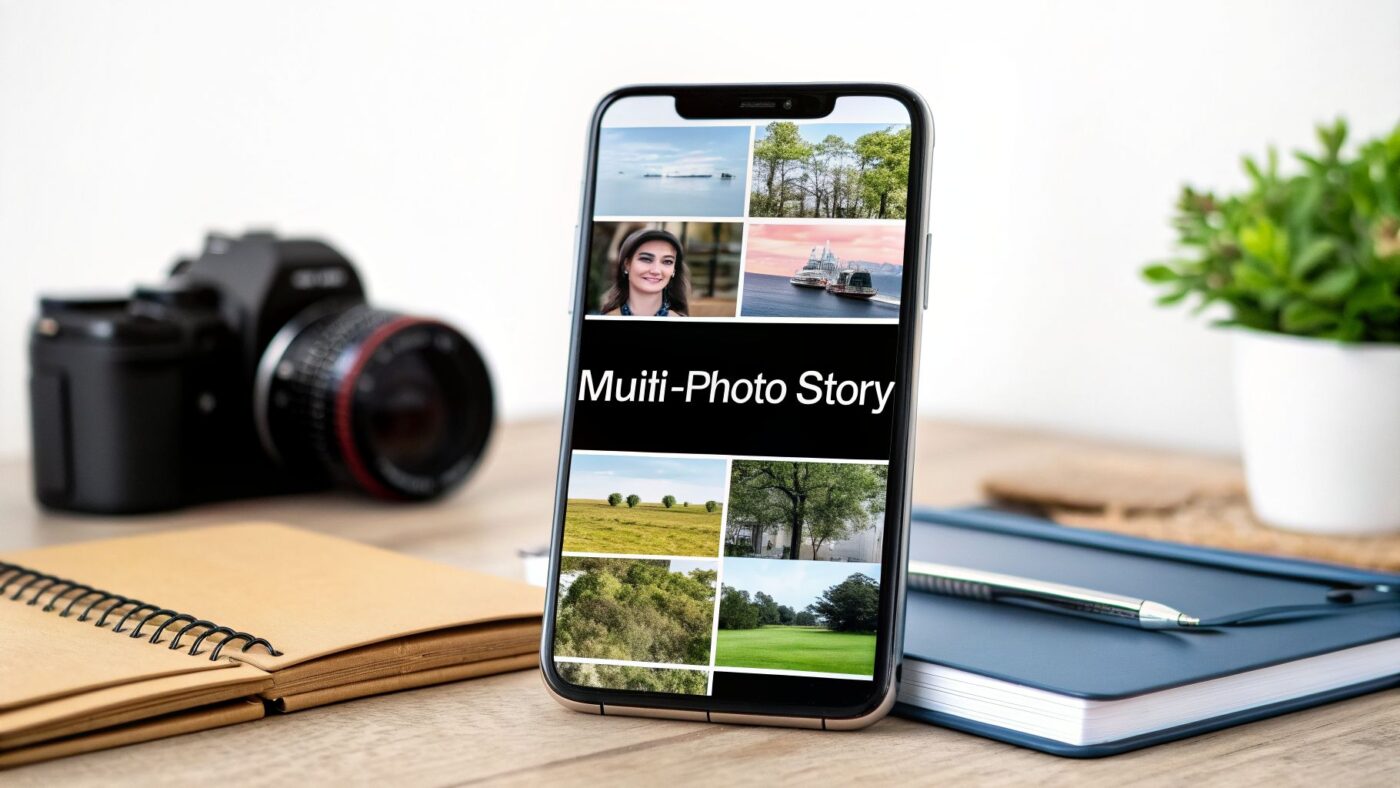
Ready to level up from single, forgettable images? You've got a few great options to add multiple pictures to an Instagram Story. You can use Instagram's own Layout tool for a clean grid, get creative with the sticker method for a stacked collage, or use the simple multi-select feature to post several photos back-to-back. Each approach transforms a basic tap-through into a full-blown visual story.
Why Multi-Photo Stories Are a Game-Changer

Sure, posting one photo is easy, but weaving several images into a single Story is a smart play to grab and keep your audience's attention. It lets you tell a much richer, more detailed narrative without making them tap through a dozen separate frames. Think about it: instead of just showing one angle of a product, you can show off all its colors, highlight key features, and even drop in some user-generated content, all at once.
This kind of dynamic content is just more interesting than a static image. It makes people pause, zoom in, and really absorb what you're showing them, which is exactly what you want. It dramatically lowers the odds they'll just swipe on by.
Keeping Your Viewers Hooked
The numbers don't lie. Recent data shows that Instagram Stories with over 26 frames have a tiny 2% exit rate. Compare that to single-frame Stories, which see viewers drop off at a rate of 8%—that's four times higher. It’s clear that longer, more involved Stories keep people watching, making them an incredibly powerful tool for anyone trying to build a brand or an audience. You can dig into more Instagram Stories statistics from 99firms.com if you're curious.
By layering your photos, you're creating an experience. You're turning passive scrolling into active engagement.
Pro Tip: Think of each multi-photo Story as its own mini-narrative. It’s not just about cramming more stuff in; it's about telling a cohesive story that makes your audience feel like they're part of it.
How Story Formats Impact Viewer Engagement
It’s not just about what you post, but how you post it. This quick comparison shows why packing more into a single story frame often works better.
| Story Format | Typical Viewer Action | Average Exit Rate | Best Use Case |
|---|---|---|---|
| Single-Image Story | Quick tap or swipe-through | High (8%) | Quick updates, simple announcements, polls. |
| Multi-Photo Collage | Pause, zoom, inspect details | Low (2% for longer stories) | Product showcases, behind-the-scenes, event recaps. |
Ultimately, a well-crafted multi-photo Story gives viewers more reasons to stick around and less reason to leave.
More Than Just a Feature—It's a Strategy
At the end of the day, learning how to add multiple pictures to an Instagram Story is less about the technical clicks and more about the storytelling doors it opens. If you’re a dropshipper, you can show off product variations in a single, compelling frame. If you're a creator, you can share a behind-the-scenes look that feels authentic and engaging. It’s a must-have skill for building a strong visual presence.
Of course, this technique is just one piece of the puzzle. To really boost your presence, you'll want to explore broader strategies to get more engagement on Instagram. And if you're wondering how Stories fit into the bigger picture, check out our guide on the https://alisavepro.com/difference-between-story-and-reels/.
Using Instagram's Built-In Layout and Multi-Select Tools
Honestly, the easiest way to add multiple pictures to an Instagram Story is by using the tools Instagram gives you right in the app. No need to download anything extra. These built-in options are surprisingly powerful and perfect for getting a clean, professional look without a ton of effort.
You have two main paths you can take. One lets you post a series of photos, each getting its own full-screen moment. The other is all about building a cool grid collage on a single Story slide. Both are super straightforward.
The Quick Multi-Select Method
If you're trying to tell a story in sequence—maybe a behind-the-scenes peek or a quick tutorial—the Multi-Select tool is a game-changer. It lets you grab up to 10 photos and videos from your camera roll all at once.
Just open your Story creator, swipe up to pull up your gallery, and look for the "Select" icon (it's usually a little square icon in the top right). Tap that, and you can pick the files you want in the exact order you want them to appear.
Each photo becomes its own separate frame in your Story. From there, you can go in and edit each one individually—add your text, drop in some stickers, or set the mood with music before you hit publish. This is perfect when each picture needs its own space but they all tie together to tell a bigger story.

Crafting Collages With The Layout Tool
Want to showcase a few images all at once in a single, polished frame? The Layout tool is your best bet. It offers structured grids that make creating a clean, organized collage incredibly simple.
I find this is brilliant for things like:
- Comparing a "before and after"
- Showing off different angles of a product
- Creating a visual theme or mood board
To get started, just open the Story editor and find the "Layout" icon on the left-hand toolbar. You’ll get a choice of different grid styles that can hold anywhere from two to six photos. Just tap a grid section and fill it with a photo from your camera roll. It's a surprisingly intuitive way to build a great-looking collage without ever leaving the app.
Creating Custom Collages with Photo Stickers
If Instagram's Layout tool feels a bit too rigid for your style, you're going to love the photo sticker method. This is where your creativity can really take over. Think of it as creating a digital scrapbook—you get to layer, stack, and arrange your photos exactly how you want.
This technique is perfect for when you want a more dynamic, free-form look. Instead of being confined to a grid, you start with a single background image or even just a solid color. Then, you can add other photos on top as "stickers," giving you complete control over their size, angle, and placement. It’s a fantastic way to build product mood boards or share a bunch of fun memories from a recent trip.
Your Guide to Making Sticker Collages
Ready to give it a try? It's easier than it sounds.
First, head to your Instagram Story creator. You can either pick a main photo from your camera roll to serve as the background or tap "Create" to start with a fresh color canvas.
With your background set, tap the sticker icon at the top of the screen (the little square with the smiley face).
Now, scroll through the sticker options until you see the one that looks like a little circle preview of your camera roll. That’s the Photo sticker. Tap it, and your phone's gallery will pop up, ready for you to select the first image you want to add to your collage.
Pro Tip: Once you add a photo sticker, tap on it! Instagram will cycle it through different shapes like circles, hearts, and stars. It's a quick and easy way to add some extra flair.
After you've added an image, you can pinch to make it bigger or smaller, use two fingers to rotate it, and drag it anywhere you want. To add more pictures, just repeat the process: tap the sticker icon, choose the Photo sticker, and select your next image. You can layer as many as you like.
Don't forget to mix in text, GIFs, and other Instagram elements to build a truly rich visual. This method really shines when you use high-quality, engaging custom product images, as they can make your collages pop.
For an extra layer of polish, getting your sizing right is key. You can learn everything you need to know in our guide on Instagram image dimensions.
A Smart Workflow for Dropshippers Using AliSave Pro
If you’re a dropshipper, you know that time is money. Manually saving product images one by one to create your Instagram Stories is a massive drag on your day. This is where a smarter workflow comes in, and it all starts with grabbing the visual assets you need in one go with a tool like AliSave Pro.
Think about it. You find a potential winning product on AliExpress. Instead of the tedious right-click-save-as dance for every single image, the extension lets you download all the high-res photos, variant pictures, and even customer review images with a single click. In just a few seconds, you have a complete media kit for your product, ready to be turned into a Story that actually sells. For anyone juggling multiple products, this is a game-changer.
Building Your Product Story From Downloaded Assets
Once you have that folder packed with images, you can get to the creative part. Using the techniques we've already covered, you can easily add multiple pictures to an Instagram Story and build a quick, effective sales funnel.
A great place to start is by setting a clean, high-quality shot of the product as your background. From there, use the photo sticker method to layer on the different variant images. Showing all the color options or styles at once is a classic and powerful sales tactic. For example, feature the main product image prominently, then stack smaller, circular stickers of each color variation around it.
This process gives you a clear path for turning your downloaded images into an eye-catching collage.

The takeaway here is a simple three-step flow: set your background, layer in your key images, and arrange everything for the best visual punch.
From Showcase to Social Proof
To really make your Story hit home, you need to add one last crucial element: social proof. This is where those customer review photos you downloaded with AliSave Pro come in handy. Grab one and add it as your final sticker. Placing a real customer's photo next to your professional product shots is an incredible way to build instant trust.
By mixing professional shots, variant options, and user-generated content in a single Story, you’re not just showing a product—you're creating a persuasive showcase that nudges customers toward making a purchase.
This ability to present a product from every angle is what sets successful dropshippers apart. You can take this even further by using Instagram's carousel feature, which lets you string together up to 20 photos or videos in one post. This gives you plenty of room to build a detailed narrative that can blow a single-image post out of the water, a trend backed by key Instagram statistics from Metricool.com.
If you're looking to save even more time, it's worth exploring other dropshipping automation tools that can take more of those repetitive tasks off your plate.
Hitting a Snag? How to Troubleshoot Your Instagram Story Uploads
Let's be real—even the simplest features can act up sometimes. If you’re trying to add multiple pictures to an Instagram Story and it's just not working, don’t panic. Most of these glitches are pretty common, and the fixes are usually quick and painless.
Where Did My Multi-Select Button Go?
One of the most common complaints I hear is the multi-select option disappearing from the camera roll. You were just using it yesterday, and now… poof. It's gone.
Nine times out of ten, this is just a sign that your app is out of date. Before you try anything else, jump over to your phone's app store (the App Store for iPhone or Google Play for Android) and see if there's an Instagram update waiting for you. A quick update is usually all it takes to bring the feature right back.
Still no luck? A good old-fashioned phone restart can often work wonders by clearing out minor software conflicts that might be causing the issue.
Fixing Blurry Photos and Annoying App Crashes
There’s nothing worse than spending time picking the perfect photos, only to have them upload looking blurry and pixelated. Instagram does compress images to save data, but sometimes it gets a little too aggressive.
Here are a few things to try:
- Check Your Connection: Always try to upload over a strong Wi-Fi network instead of cellular data. A stable connection can make a huge difference in upload quality.
- Get the Dimensions Right: For the best results, resize your photos to the proper Story aspect ratio (9:16) before you upload. This prevents Instagram from doing any awkward cropping or heavy-handed compression.
App crashes are another big one, especially when you’re in the middle of creating something. The culprit is often a full cache. Go into your phone's settings, find the Instagram app, and clear its cache. You'd be surprised how many performance problems this single step solves.
If the app keeps freezing up on you, particularly when you're stacking photos using the sticker method, it could be a memory overload. Your phone is trying to handle too many layers at once. Try simplifying your design by using fewer photos or interactive elements on a single Story slide.
And finally, a simple but crucial tip: make sure you have enough free storage on your phone. When your device is crammed full, apps like Instagram can become unstable and crash, especially when you're asking them to process multiple images and videos.
A Few Lingering Questions
Even after you've got the methods down, a few questions tend to pop up. Let's clear up some of the most common ones so you can post your multi-photo Stories without a hitch.
How Many Pictures Can I Actually Fit in One Story?
That really comes down to which technique you're using.
If you go with Instagram's built-in Layout feature, you can create a neat grid collage with up to six different photos. It's clean, simple, and great for structured looks.
But if you want to get more creative, the photo sticker method is the way to go. Technically, Instagram lets you stack up to 10 photo stickers on top of your background. Just a heads-up: if you're using an older phone, piling on too many stickers might make the app a little sluggish.
Can I Put Both Photos and Videos in the Same Story?
You sure can, but only with one of the methods we covered.
The Multi-Select tool is what you need here. It lets you pick up to 10 different items straight from your camera roll, and that can be a mix of photos and videos. Each one you select will become its own separate slide in your Story sequence.
The Layout grid and the photo sticker trick, however, are strictly for still images. They don't support video clips.
Help! My Multi-Select Option is Gone!
Don't panic—this is a super common glitch, and the fix is usually pretty simple. Nine times out of ten, it just means your Instagram app is out of date. Just pop over to your phone's app store (the App Store for iPhone or Google Play for Android) and see if there's an update waiting for you.
Already on the latest version? Try the oldest trick in the book: restart your phone. It sounds basic, but a quick reboot can often clear out minor bugs and bring that missing feature right back.
Ready to build stunning product Stories in a fraction of the time? With AliSave Pro, you can download all AliExpress product and review images in a single click, giving you endless content for your collages. Get the free Chrome extension at https://alisavepro.com.